Varro for JetBrains IDEs:在 IntelliJ IDEA 等 IDE 中运行 OpenCode
koltyakov/varro-openjet
Varro 推出 JetBrains IDE 插件,可在 IntelliJ IDEA、WebStorm、PyCharm、GoLand 等 IDE 中运行 OpenCode,复用 Varro 聊天 UI 并以 Kotlin 后端做编辑器集成。
Varro for JetBrains IDEs. Run OpenCode in IntelliJ IDEA, WebStorm, PyCharm, GoLand, or another IntelliJ-platform IDE.
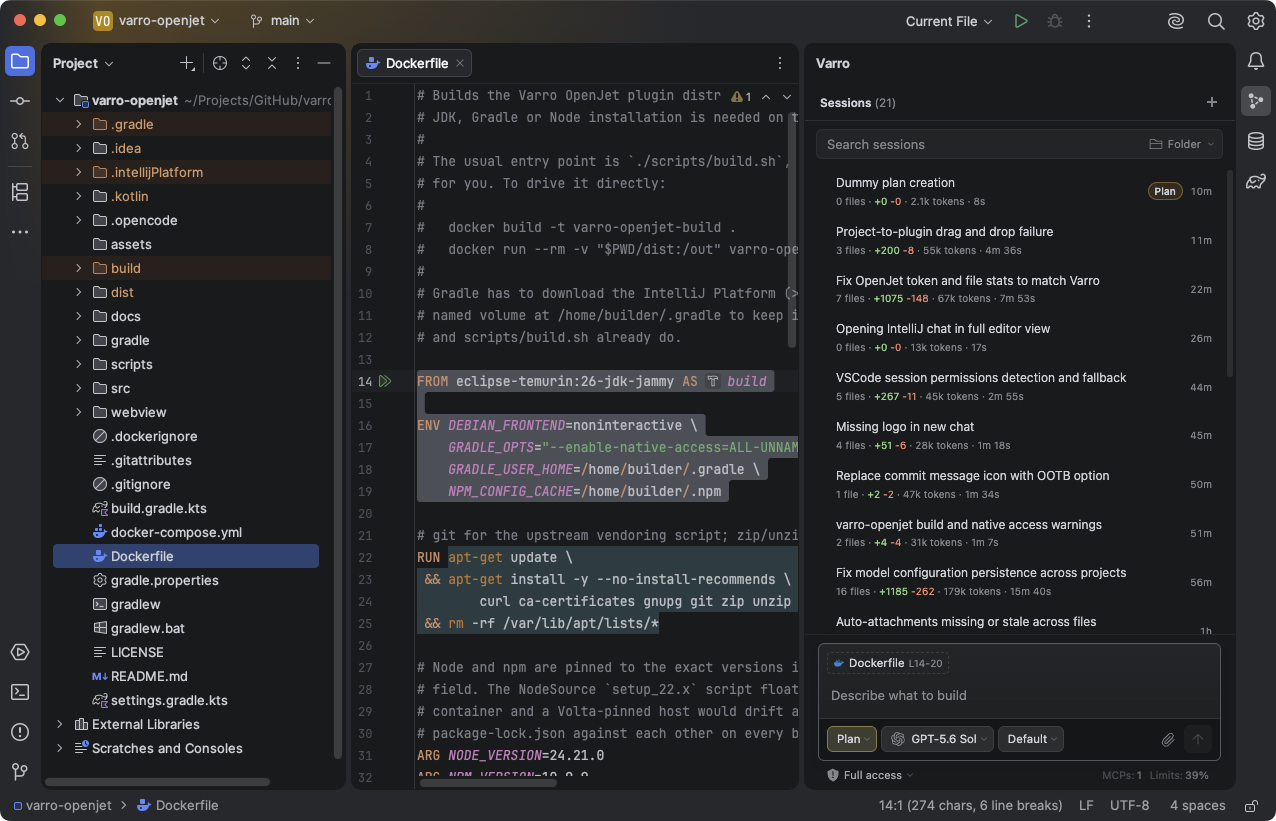
The plugin reuses Varro's chat UI, with a Kotlin backend for editor integration, settings, persistence, and provider limits. It uses your existing OpenCode configuration for providers, models, agents, commands, skills, and MCP servers.
Getting started
You'll need:
- A JetBrains IDE in the supported build range, 252 through 262, with a JCEF-enabled runtime. The plugin is built against IntelliJ IDEA 2026.2.2.
- OpenCode CLI V2 2.0.5 or newer, or V1 1.16.0 or newer, available on
PATHor configured in Settings > Tools > Varro. - An OpenCode provider set up with
opencode auth loginor/connectin chat.
If you haven't installed OpenCode yet, follow its installation guide or use npm:
npm install -g @opencode/cli
opencode auth login
Download the plugin ZIP from GitHub Releases, or build it using the instructions below. Open Settings > Plugins > Install Plugin from Disk and select the ZIP. Restart the IDE and open the Varro tool window on the right.
Varro discovers a registered local V2 service when no explicit CLI command is configured. Otherwise it connects to a healthy server at 127.0.0.1:4096, or starts one when needed. It detects V1 and V2 automatically and authenticates V2 requests in the Kotlin host. CLI discovery prefers opencode2 when installed alongside opencode. A managed server can try subsequent ports when its port is occupied. You can change the command, port, or automatic startup in Settings > Tools > Varro.
Background CLI updates are enabled by default and run only for a managed server while sessions and host work are idle. The updated CLI takes effect on the next server start. Varro only stops servers it started.
OpenJet and Varro for VS Code share server ownership under the same OS user. They use the same version-1 leases, managed markers, credential companions and launch claims, including surviving legacy temporary-directory records. Discovery retains the original record's path, even when the other editor selected a different port. A private saved credential can reconnect after process replacement only when the server rejects anonymous and incorrect-password requests. That fallback is attach-only and cannot stop, restart or update the server. Registered connections recover through the shared records when another editor restarts their server.
If a server rejects authentication, Varro retries credentials saved for that server URL, then asks for a username and password. It saves verified credentials in the IDE password safe for future connections.
Installing from a checkout
The install script can build the plugin and install it into your detected JetBrains IDEs:
./scripts/install.sh                         # build and install
./scripts/install.sh --no-build              # install the ZIP already in dist/
./scripts/install.sh --list                  # list detected IDEs
./scripts/install.sh --ide IntelliJIdea2026.2 # install into one IDE
./scripts/install.sh --uninstall
Run the same command to update, then restart the IDE. The script targets IDEs within the plugin's supported build range.
Using Varro
Chat in the tool window or open a session in an editor tab. On IntelliJ 2026.1+, choose Open in Window from a session's menu to move it into a detached IDE window. The new-chat menu also offers New Chat Window. Opening the same session in a window again focuses its existing window. On 2025.2 and 2025.3, window commands are hidden; open an editor tab and drag it out of the IDE window to detach it manually. Editor tabs support IntelliJ's usual split and move controls. Drafts and session routes are saved per view.
Model preferences are shared across projects in the same IDE and can sync across JetBrains IDEs through OpenJet's shared settings file. Each session's selected model and permission mode are project-owned and sync between the tool window and editor tabs. Project UI preferences survive browser reloads and IDE restarts.
Wide editor and window chats have a light/dark toggle in the upper-right gutter. It switches that chat to Varro's opposite light or dark palette and follows subsequent IDE theme changes. Each open chat keeps its own toggle; new chats restore the last saved preference. Click again to return to the IDE palette. The control hides when the gutter is too narrow.
To add context, drop files or directories into the composer, or choose Add to Varro Context from the editor or Project view. The current-document chip toggles automatic context and remembers your choice per project. Switching to a chat tab keeps the last source editor as context, including unsaved edits.
Pasting 10 or more lines that match the current selection in a saved workspace file creates a line-range attachment. Shorter pastes and unsaved selections stay as text. Plain-text pastes of 10 or more lines matching an open terminal's available output become terminal attachments; terminal engines that do not expose their output leave the paste as text.
History images load small previews near the viewport. OpenJet generates these in Kotlin with JVM image codecs, applies EXIF orientation, and preserves transparency. PNG, JPEG, GIF and WebP inputs produce PNG previews up to 384 pixels and 256 KiB. AVIF and unsupported or damaged images keep a placeholder. Opening a preview or editing a message fetches the original. The shared thumbnail cache is memory-only and expires after five minutes.
| Action | Shortcut |
|---|---|
| Focus Varro Chat | Ctrl+Alt+V / Cmd+Alt+V |
| Add to Varro Context | Ctrl+Shift+K / Cmd+Shift+K |
| Hide the tool window | Shift+Escape |
Other actions are under Tools > Varro and in Find Action, including New Varro Chat Window. The tool-window options menu includes the file-diff toggle, settings, usage reports, and About. Commit-message generation is available in the commit toolbar.
With the tool window open, hover over the OpenCode status-bar version for CLI and server versions, port, available process uptime, and the OpenJet version. An asterisk marks a CLI older than the pinned upstream verified version or a server running an older version than the installed CLI. Attach-only connections show the server address instead of local CLI update advice.
Settings are under Settings > Tools > Varro. You can configure server startup and updates, the default permission mode, chat layout, fonts, and models for commit messages and permission review. The initial permission mode is auto; default follows OpenCode's rules, and full allows a session to act without confirmation. A font size of 0 follows the IDE's font settings.
The Agents settings control the runtime-only read-only Ask agent and fallback titles for untitled sessions. Ask is enabled by default; fallback titles are disabled. Configure automatic compaction in OpenCode. On-demand compaction remains available in chat.
Background notifications
Under Settings > Tools > Varro > Notifications, enable desktop alerts and choose which events play the water-bubble sound: permission requests, questions, completed replies, and plans ready for review. All options default to off and stay local to each IDE. Sound works independently of desktop alerts.
Alerts appear only while the IDE is in the background. On macOS, they also stay quiet while any IDE window is visible, including side-by-side use and detached chat windows. Permission alerts wait for automatic handling and disappear if the request is resolved. Subagent permission requests can alert; subagent completions do not.
Varro groups bursts and leaves at least five seconds between deliveries. Desktop banners use the IDE's operating-system notification service, so enable system notifications in the IDE and allow the IDE in your OS notification settings. The IDE notification list also keeps the latest alert with an Open chat action. Sound uses the bundled recording through JVM audio without external players.
Database context in DataGrip
Open a table or query-result grid for automatic context. Varro includes visible column metadata and any selected rows. The composer chip shows the object name; hover for connection details, scope, and row count, or click it to disable context. Switching to chat keeps the last grid, while returning to an editor restores file context.
SQL consoles and datasource-associated SQL files provide the active connection, current catalog/schema and search path, connection state, and selected SQL or the statement under the caret. If the IDE has not parsed the latest edits, Varro uses the current buffer. Result grids include the SQL that produced them and the selected column names.
Selecting objects in Database Explorer supplies context without opening a grid. Selecting a column or key includes its parent table. SQL references resolved by DataGrip supply relevant object metadata, including primary keys, foreign keys, indexes, nullability, defaults, and comments. Context follows the last console, grid, DDL editor, or Explorer selection into chat. The chip's tooltip identifies the datasource and schema; @ table search prioritizes that datasource and schema.
Project database context also includes configured datasources, their connection states, and loaded catalog/schema names, even with an empty editor area. The current datasource follows the console, grid, or Explorer selection. With no selection, Varro identifies the only configured or only connected datasource when there is one; multiple candidates stay explicit. The inventory also accompanies ordinary file context. Disabling automatic context disables this inventory too.
DDL tabs provide the full editor buffer, including unsaved edits. Table grids also include DDL when already loaded in the IDE.
- Use Add to Varro Context in a grid or
Ctrl+Shift+K/Cmd+Shift+Kto attach a JSON snapshot with selected row values. Snapshots stay attached when you switch tables and open from the composer for inspection. - Drag tables from Database Explorer or type
@to search by table, schema, or datasource. These attach column metadata and already-loaded DDL without opening a grid. Drops support up to 20 tables.
Capture uses loaded data only. Accept active cell edits before capturing. Limits are 200 rows, 64 columns, 4,000 characters per cell, 80,000 serialized row characters, and 40,000 DDL characters. The chip reports truncation.
SQL text is limited to 40,000 characters. Related metadata is limited to 8 objects and 60,000 serialized characters. Unknown connection details stay unknown, and context excludes connection URLs and credentials.
Datasource inventory is limited to 20 entries and 40,000 serialized characters, with up to 16 loaded catalog/schema names per datasource.
Requires Database Tools. To verify compatibility with a local DataGrip installation:
./gradlew verifyPlugin -PdatagripVerificationPath="/Applications/DataGrip.app/Contents"Sharing settings across JetBrains IDEs
In the IDE whose saved preferences you want to keep, open Settings > Tools > Varro > Shared OpenJet settings and click Use this IDE's settings to initialize sharing. Apply any pending settings edits first. This copies that IDE's model list and core settings into an OpenJet-only file:
| OS | Location |
|---|---|
| macOS | ~/Library/Application Support/OpenJet/settings.json |
| Linux | $XDG_CONFIG_HOME/openjet/settings.json, or ~/.config/openjet/settings.json |
| Windows | %APPDATA%\OpenJet\settings.json |
Other JetBrains IDEs under the same OS user adopt the shared file when Varro opens. Running instances check for changes every second. Existing shared settings always take precedence during migration. Until you initialize sharing, preferences stay in each IDE.
Shared settings include model visibility, pins, ordering, names, server options, default permission mode, commit-message and auto-approve models, and agent preferences. Fonts, rendering, chat appearance, and session selections stay local. VS Code's Varro storage and OpenCode's configuration are separate.
Writes merge changed fields under a cross-process file lock and replace the JSON atomically. Concurrent changes to the same preference use the last write. Invalid or unsupported files remain untouched; synchronization resumes after they are repaired.
Sessions and model controls
To copy existing V1 history into V2, connect to V2 and run Tools > Varro > Import OpenCode v1 Session into v2. Select a conversation from the current workspace. The importer copies its same-workspace children, keeps the original records unchanged, and does not execute historical tools or send a model request. Copies have new IDs and a (v1 copy) title suffix.
V2 session sharing is unavailable. Varro stores V2-only metadata and archive timestamp overrides under $XDG_STATE_HOME/varro/opencode-v2, defaulting to ~/.local/state/varro/opencode-v2. These annotations use the same format as Varro for VS Code. See V2 support for the adapter and verification details.
- Queue messages while a session is running. The host persists queued dispatches and reconciles them with message history after reconnecting. It does not automatically retry a send whose outcome is uncertain.
- Deleted session trees go to the recycle bin for 7 days. Restore them there, or permanently delete them by emptying the bin. Expired entries are removed when the bin is read.
- Ralph runs support start, pause, resume, stop, and model changes. The host journals their state and reattaches after reconnecting to OpenCode.
- The Models menu can assign OpenCode's small model and agent models in global OpenCode configuration. Commit-message and auto-approve model assignments use OpenJet's shared settings once sharing is initialized.
- Assign a vision-capable model to the global
visionagent in the Models menu. Varro creates a read-only subagent when needed and automatically delegates attached images to it when the selected model supports tools but cannot read images. Existing custom vision-agent settings are preserved. - Permission controls can save rules for a session or the project. Project rules update the project's
opencode.jsoncif present, otherwiseopencode.json.
Provider limits and usage
Quota badges show remaining allowances and reset times when the provider exposes them. The Kotlin adapters support Anthropic/Claude Code, OpenAI Codex, GitHub Copilot, OpenRouter, Gemini, Antigravity, Ollama Cloud, OpenCode Go, Z.ai, MiniMax, Kimi, and xAI. They use existing credentials and the IDE's HTTP proxy and certificate settings. No Node.js helper is required.
The Codex quota popup also shows the remaining credit balance when the usage endpoint provides it, even without active quota windows.
When a poll fails, Varro may show the last successful snapshot for up to 15 minutes. Quota caches are project-local. Antigravity needs a detected local language-server port or the ANTIGRAVITY_BASE_URL and ANTIGRAVITY_CSRF_TOKEN environment variables, with a loopback IP address in the URL.
Usage reports open as Markdown documents and cover retained history across projects for today, the last 7 and 30 days, and optionally all time. They read the local OpenCode database without starting the server and include prompt counts, tokens, cache usage, and assistant duration by provider and model. If the database is missing, reports fall back to REST history for up to 250 sessions.
Network and credentials
Chat requests go through the local OpenCode server. Provider-limit polling contacts provider quota endpoints directly, using credentials held in the IDE host. Credentials are not sent to the webview. Supported OAuth adapters can refresh expired tokens.
Webview API requests pass through a route allowlist, and terminal setup commands use a fixed allowlist. Commit-message generation reads staged or unstaged changes without mixing them, staging files, or creating commits.
Building
Docker
Docker provides the JDK, Gradle, and Node toolchain:
./scripts/build.sh          # build the working tree
./scripts/build.sh clean    # clean build inside the image
./scripts/build.sh verify   # Kotlin and webview host tests
./scripts/build.sh shell    # open a shell in the build container
./scripts/build.sh prune    # trim OpenJet's Docker image/build cache
The plugin ZIP is written to dist/varro-openjet-<version>.zip. The first build downloads the IntelliJ Platform, which is over a gigabyte. Later builds reuse the Docker volume cache.
Docker Buildx is required. Image builds use a dedicated varro-openjet builder with a 4 GB build-cache target. The script trims that cache and removes dangling OpenJet images before and after builds, including failures. Gradle checks its cache after every container build, removing unused downloads and released wrappers after 14 days, and generated cache entries after 7 days. Active dependencies remain cached. These limits apply to cache retention, not peak disk usage during a build.
Local build
Install JDK 21 and the Node/npm versions listed in webview/package.json. Volta selects the pinned Node/npm versions automatically. Gradle uses the included wrapper.
./gradlew buildPlugin       # build/distributions/varro-openjet-<version>.zip
./gradlew runIde            # launch a sandbox IDE
./gradlew test              # Kotlin and webview host tests
./gradlew check buildPlugin # CI-equivalent checks and packaging
When needed, run the IntelliJ Plugin Verifier directly on a development machine with ./gradlew verifyPlugin. Do not run it in Docker.
The build uses npm ci. If you change webview dependencies, run npm install in webview/ and commit the updated lockfile. Keep the Node/npm versions in webview/package.json and Dockerfile in sync.
For Kotlin-only iteration, -PskipWebview=true skips webview dependency installation, bundling, and host tests. Use it only after building the webview resources. clean removes those resources, so rebuild them before packaging.
CI and releases
GitHub Actions runs ./gradlew --no-daemon --stacktrace check buildPlugin for pull requests, pushes to main, and tags starting with v. This runs the Kotlin and webview host tests and builds the plugin ZIP. Successful builds save the ZIP as the plugin-archive workflow artifact for 14 days.
To publish a release, push a version tag on the commit you want to ship:
git tag v0.1.0
git push origin v0.1.0
Use tags such as v0.1.0 for stable releases or v0.2.0-rc.1 for prereleases. The workflow uses the tag without the v prefix as pluginVersion, overriding gradle.properties for that build. After tests and packaging pass, it creates or updates the GitHub release, generates release notes, and attaches varro-openjet-<version>.zip. Tags with a prerelease suffix produce GitHub prereleases.
Release publishing uses the built-in GITHUB_TOKEN; no additional secrets are needed. The release job has contents: write permission. Branch and pull-request builds use the version in gradle.properties.
Development
The chat UI runs in IntelliJ's embedded JCEF browser. Kotlin handles the host messages and connects to OpenCode over REST and SSE. See architecture for the component map and bridge protocol.
See contributing for the development workflow, checks, and sandbox verification. For CLI, server, browser, or quota problems, see troubleshooting.
Upstream UI sources live in webview/vendor/. To refresh them, run these commands from webview/:
npm run sync                                # fetch upstream and update vendored sources
VARRO_SOURCE=/path/to/varro npm run sync    # use a local Varro checkout
webview/upstream.json selects the repository and ref, currently main, and the files to copy. Sync replaces the vendored directories and records the resolved commit in webview/vendor/UPSTREAM.json. Normal builds use the committed vendor snapshot without fetching upstream. Review vendor changes before committing a sync.
Sync also copies upstream version specifiers for packages already listed in webview/package.json, including dev dependencies. Packages absent from upstream keep their current versions. If sync updates dependency versions, run npm install in webview/ and commit the updated manifest and lockfile with the vendor changes.
Run npm run test:host from webview/ to test project storage, editor context, session permission modes, and the quota event contract. npm run typecheck checks TypeScript, and npm run watch rebuilds browser assets as you edit. The Kotlin host tests run with ./gradlew test from the repository root, which also runs the webview host tests unless skipWebview is set.
License
MIT. The vendored Varro UI is also MIT-licensed. OpenCode supplies the agent runtime.
来源:GitHub · github.com