konoma:为 AI 结对编程打造的终端文件浏览器
LESIM-Co-Ltd/konoma
LESIM-Co-Ltd 发布 konoma,一款用 Rust 编写、面向 AI 结对编程的终端文件浏览器,采用 Tree 与 Preview 全屏模式切换,避免分屏。

Terminal file browser built for AI pair-programming — full-screen previews (Markdown, images, PDF, CSV, spreadsheets, Word and PowerPoint), a git suite, and an agent-watch mode that follows your AI's edits. macOS & Linux · Rust · MIT

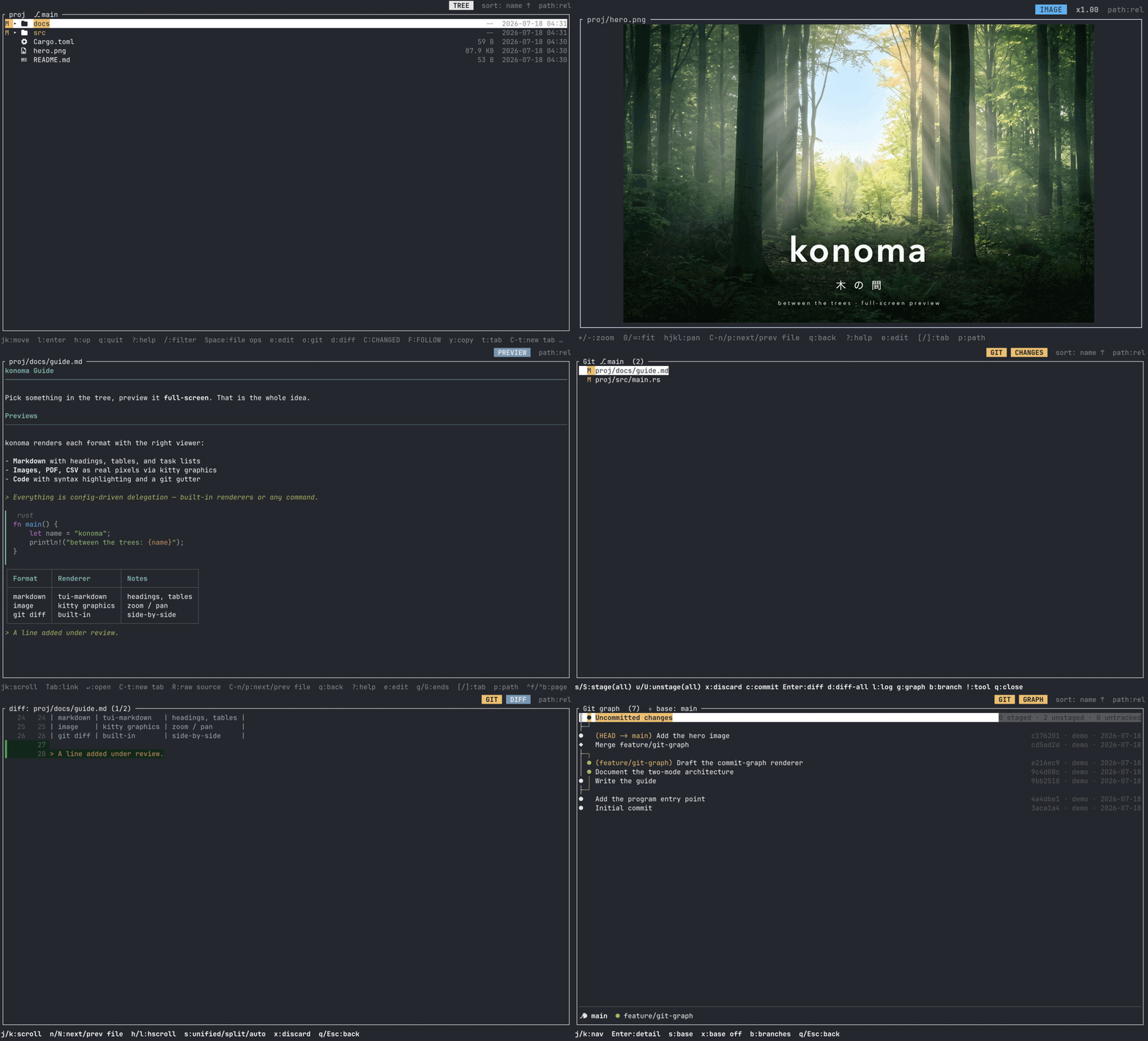
Pick something in the tree, and preview it full-screen. konoma is a terminal file browser built around that single idea. It is made for a side-by-side workflow where you keep konoma on one half of the screen and work on the other.
The name "konoma" (木の間, "between the trees") comes from the tool's character: peering through the gaps between the trees to look into the contents of the file tree.
📖 Documentation: lesim-co-ltd.github.io/konoma — getting started, guides and full reference, in English and 日本語.
Quick start
cargo binstall konoma   # prebuilt binary, no compilation
cargo install konoma    # or compile from crates.io
konoma [DIR]            # opens DIR (defaults to the current directory)
There is nothing else to install. Images, PDF, SVG, Mermaid diagrams, LaTeX math, CSV,
spreadsheets, Word documents, slide decks and H.264/HEVC video thumbnails are all rendered by
konoma itself, in pure Rust. Two optional extras
add the rest: git enables the in-app git suite and ffmpeg covers the remaining video formats —
a missing one costs you that one feature, never the app. See Install for every
installation route and Requirements and optional tools for
the terminal, font and tool details.
Why it exists
When you want a tree + preview pane filling one half of the screen while you work on the other, existing TUI file managers (such as yazi) cannot structurally remove the file-list panel, so they cannot show only the selected file full-screen. konoma solves that one thing with mode transitions: Tree (full-screen) ⇄ Preview (full-screen), with no in-between split view.
Screenshots
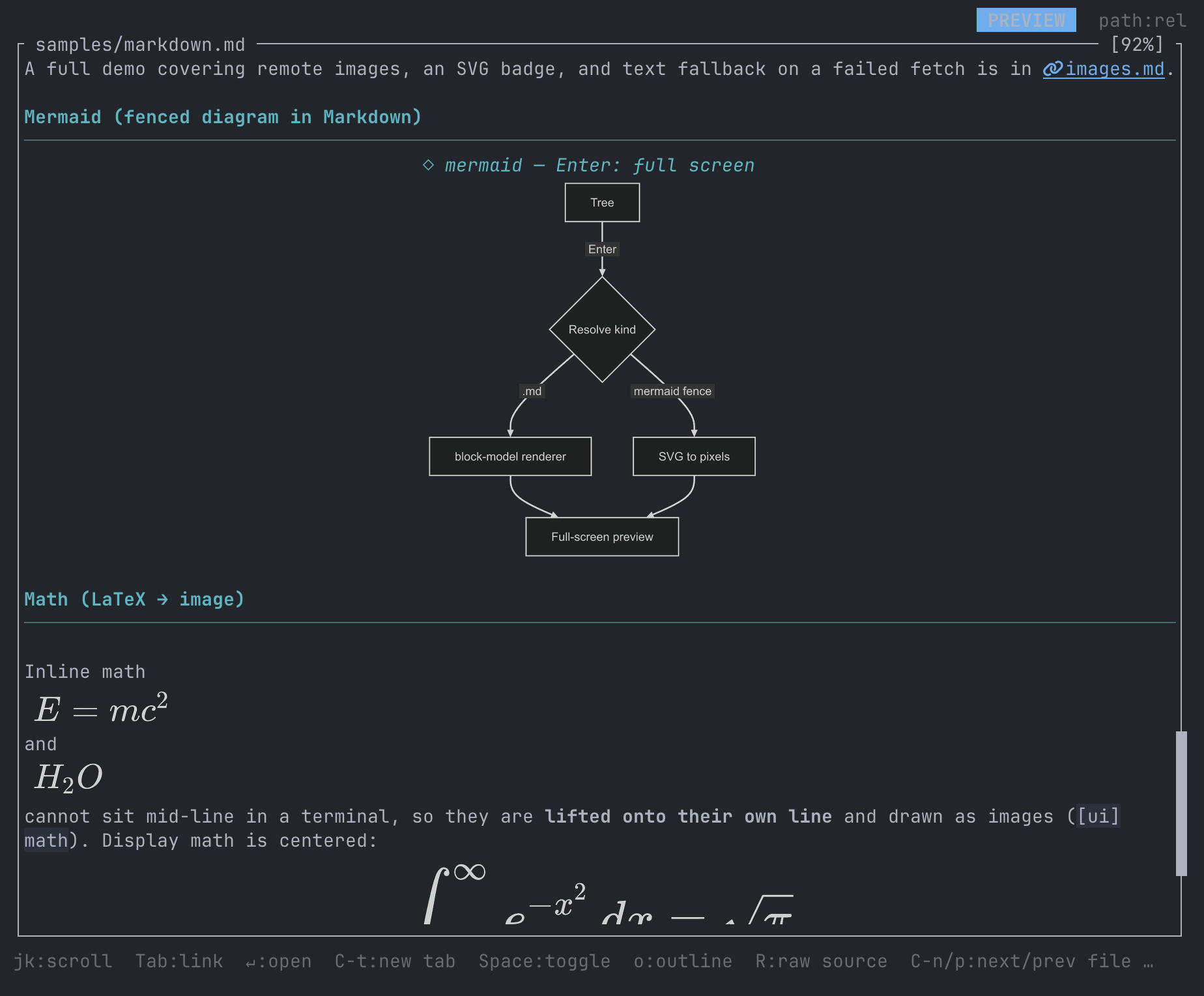
Markdown — Mermaid diagrams and LaTeX math, typeset and drawn as real images in the preview
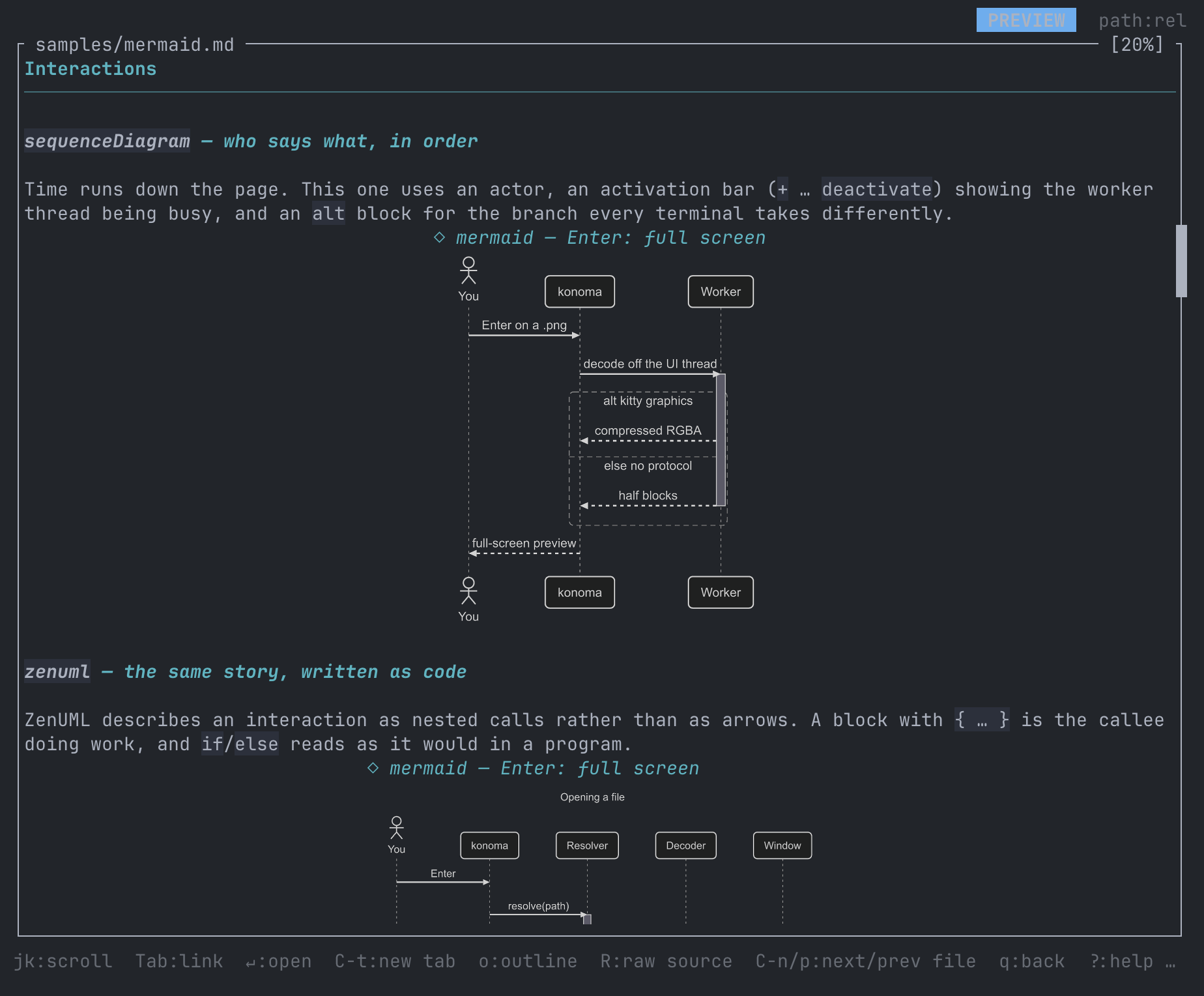
Mermaid — all 23 diagram kinds, parsed, laid out and drawn by konoma itself, with no browser and no external renderer
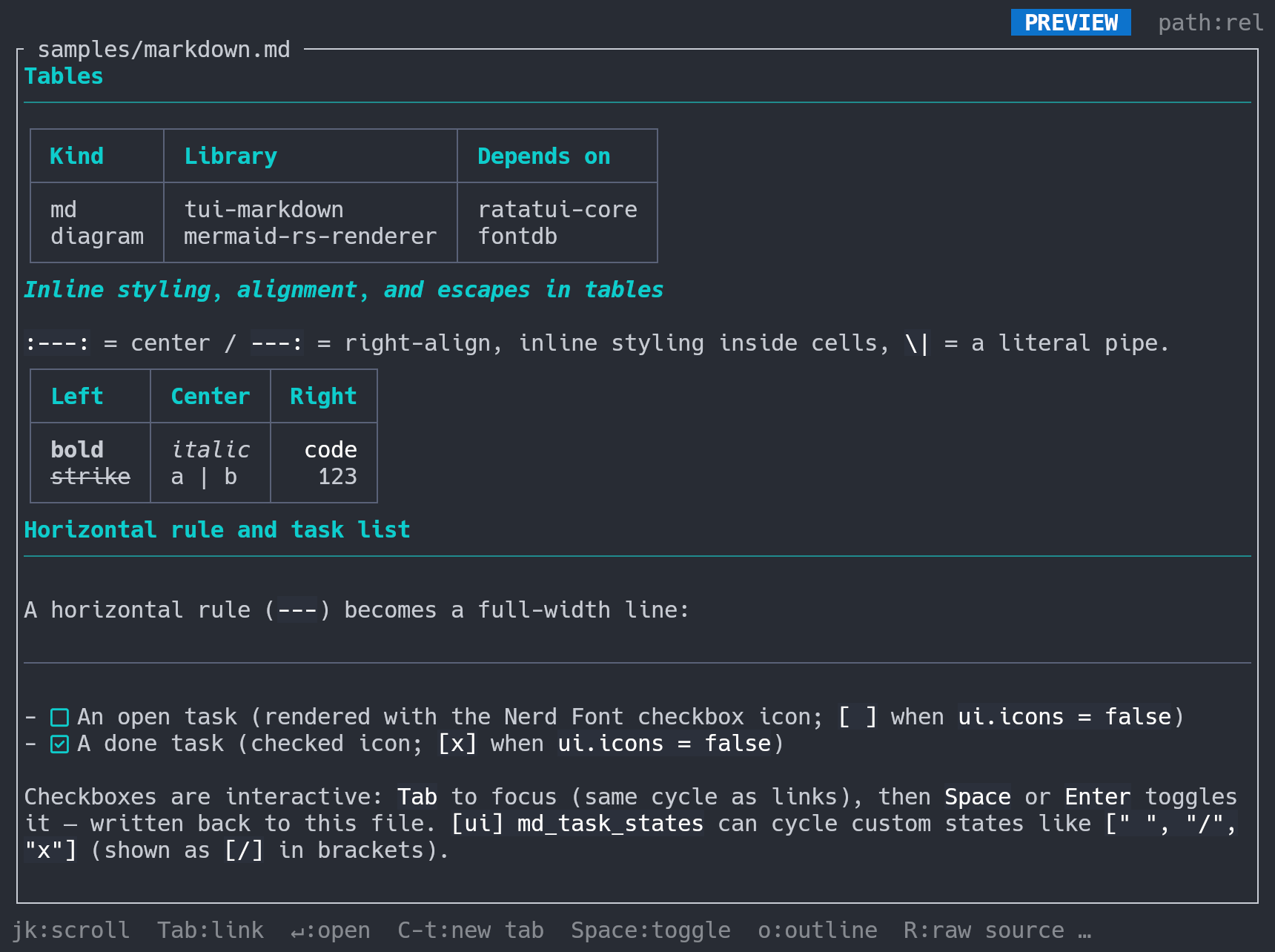
Rich text — tables with inline styling and alignment, a horizontal rule, and interactive task lists
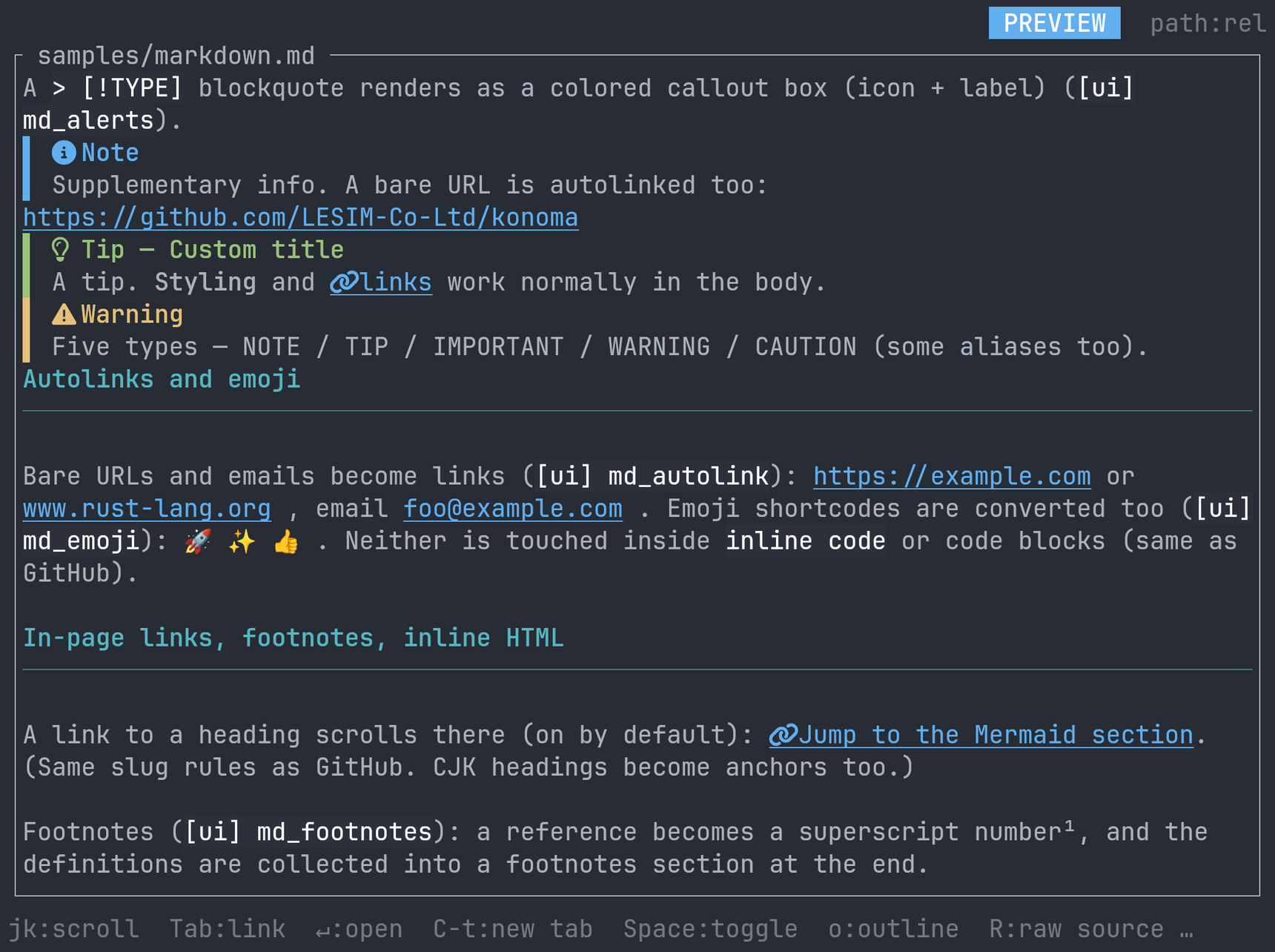
GitHub-flavored — alerts, autolinks, emoji, and footnotes
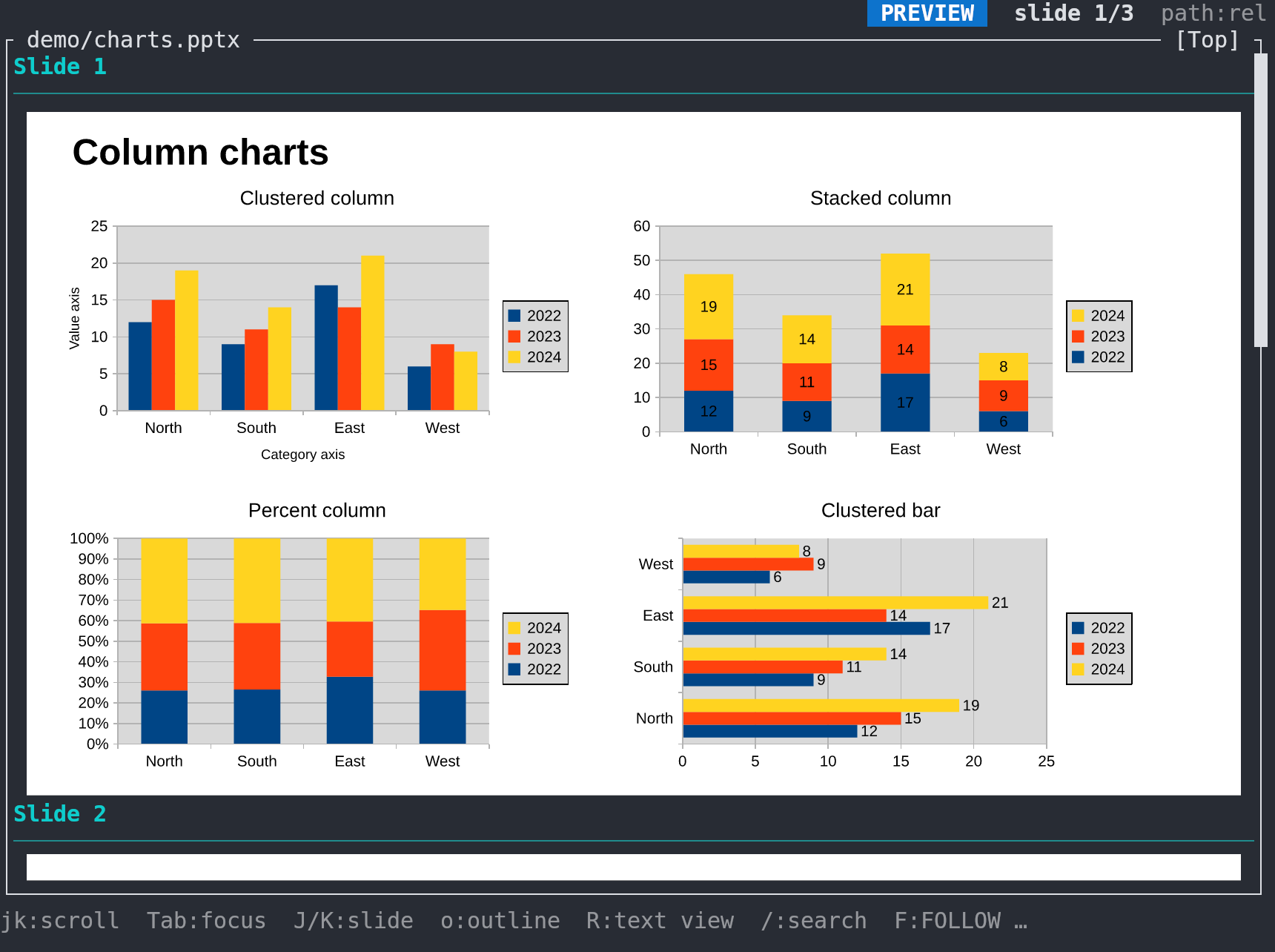
Presentations — PowerPoint and OpenDocument slides drawn as pictures by konoma itself: charts, shapes, tables and pictures; R switches to the text view
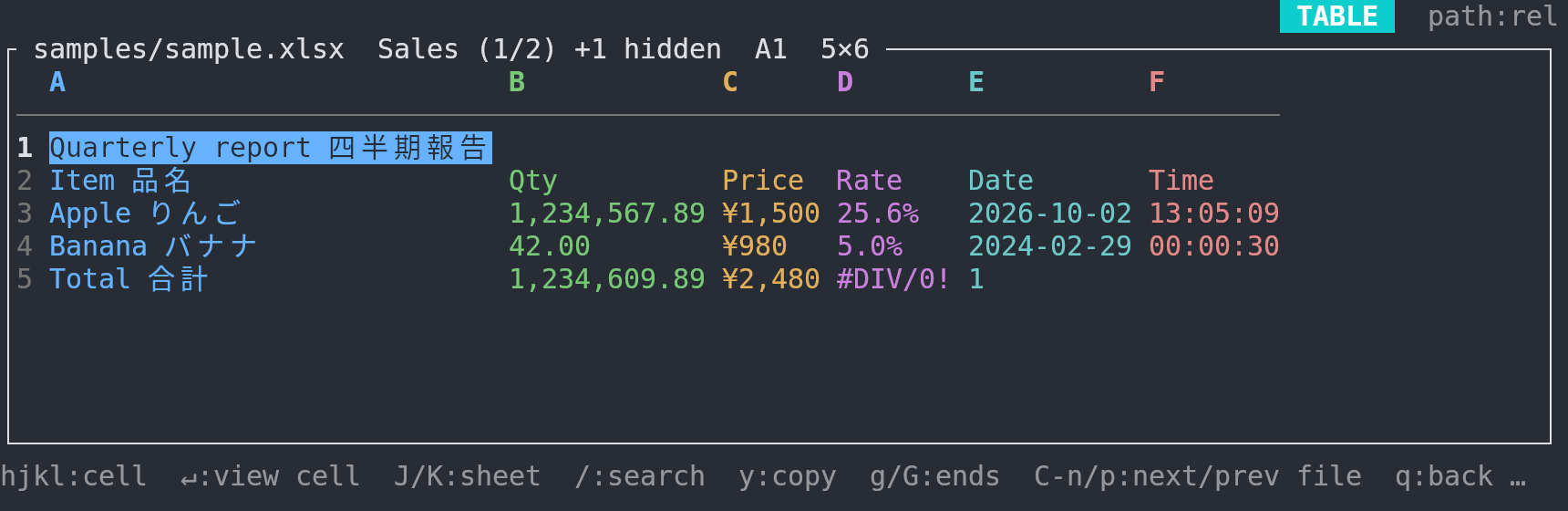
Spreadsheets — Excel and OpenDocument sheets as navigable tables, every cell in its display format
Agent watch — konoma follows your AI's edits
Press F and konoma stops being a browser you drive: whenever a file changes on
disk, it jumps there by itself and shows a diff of what changed since you pressed
F — not the full git diff. That distinction is the point. A working tree you
hand to an agent usually already has your own edits in it; follow mode hides those
and shows you only what the agent just did. Press f to swap between the two views,
n/N to cycle the files touched in this session, and q to stop.
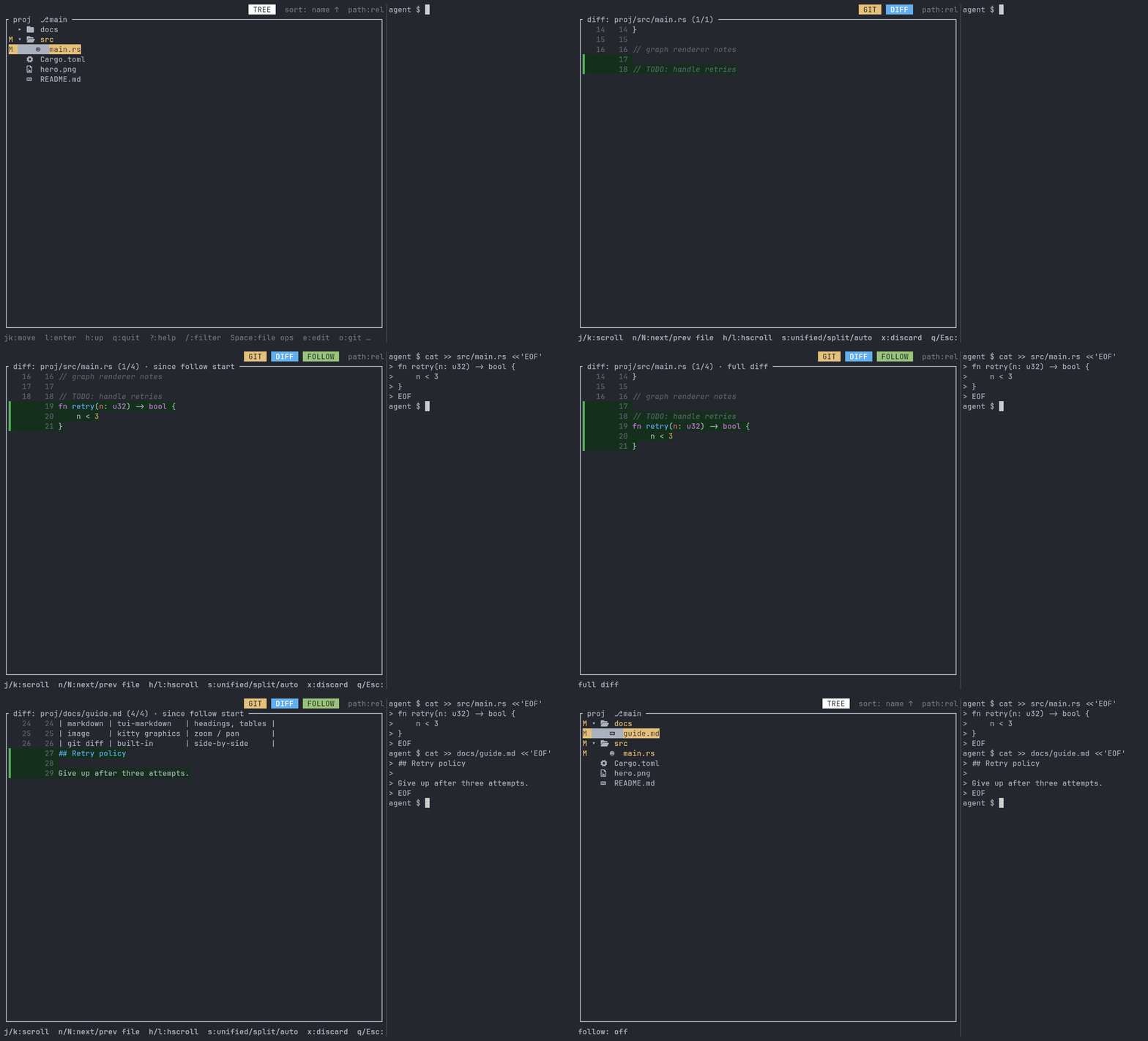
Follow mode — the file already has an uncommitted line (// TODO: handle retries).
After F, the agent's new function is the only thing highlighted; f switches to
the full git diff, where both show up.
Worktrees — one checkout per agent
Agents work best with a checkout of their own, so git worktree has become the way
to run several at once. o then w lists the repository's worktrees; d shows what
one of them has added since its base branch — committed and uncommitted together,
because an agent that commits mid-task would otherwise show you an empty diff. Enter
moves in, Ctrl-t opens it in a new tab, and the WT chip keeps naming the repository
you came from, since a worktree's directory rarely does.
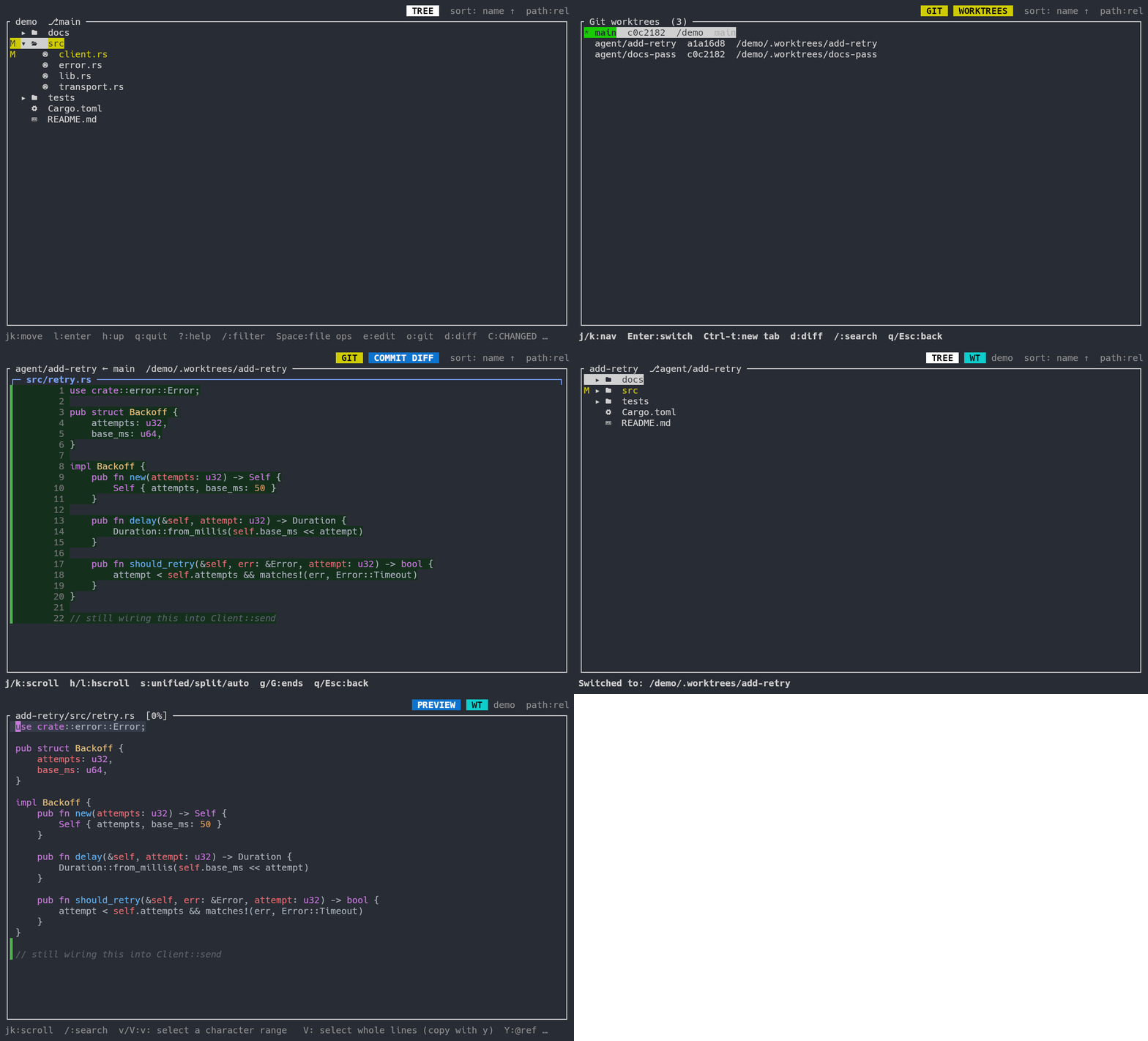
Worktrees — the agent's checkout has a landed commit and an unfinished line;
d shows both. After Enter, WT demo says which repository
add-retry belongs to.
Features
- Full-screen preview: images, Markdown, Mermaid, code, SVG, video thumbnails, and
PDF (multi-page, navigate with
J/K) rendered to fill the screen. - Table preview: CSV/TSV render as an aligned, rainbow-column table with a cell cursor;
archives (
.zip/.tar/.tar.gz) list their entries — name, size, modified date — in the same grid, without extracting anything. Spreadsheets (.xlsx/.xlsm/.xltx/.xltm/.xlsb/.xls/.ods) open in the same grid with every cell shown in its Excel number format (thousands separators, percent, currency, dates, times), column letters and row numbers;J/Kswitch sheets. Rows and columns hidden in Excel are still shown (hidden sheets are not); Excel 365 error values and pivot-table totals appear as saved, and formulas are never recalculated. - Word / OpenDocument documents (
.docx/.docm/.dotx/.dotm/.odt/.ott) are converted to Markdown by konoma itself (no external tool) and drawn like any.md: headings, bold / italic / strikethrough, bullets and numbering exactly as Word shows them ((a),ア,①,第1条...), tables (a merged cell shows its value in the top-left cell), pictures, footnotes / endnotes, links (external URLs, and to headings in the document), saved results of fields such as a table of contents, and text boxes. Tracked changes show the final text; comments and headers / footers are not shown. Equations (Word's OMML, ODF's MathML) become LaTeX and are drawn as math (one konoma cannot convert stays as text).Rshows the converted Markdown — select withv/V, copy withy(handy for handing a document to an AI). The file itself is never written (checkbox toggling is off for these). A password-protected, damaged or too-large file says why it cannot be shown, and a conversion cut at the size limit says so in the title. The old binary.docis not previewed (eopens it). Checked against LibreOffice-made files only — not yet against files made by Microsoft Word. - PowerPoint / OpenDocument presentations (
.pptx/.pptm/.ppsx/.ppsm/.potx/.potm/.odp/.otp) open as pictures of the slides, drawn by konoma itself (no external tool): shapes, text, pictures (including EMF / WMF), gradients, groups, tables, charts and SmartArt, with the speaker notes under each slide and hidden slides marked.J/Kjump to the next / previous slide (status lineslide 3/12);Rswitches to a text view of the slides (the default on half-block terminals without a graphics protocol). Office fonts are substituted, so line breaks can differ from PowerPoint; 3-D charts are drawn with depth but without perspective. The old binary.pptis not previewed (eopens it). Compared against LibreOffice's renderings, not against PowerPoint itself. - Open Office documents in their app:
eon a Word / Excel / PowerPoint / OpenDocument file opens it in Microsoft Office, LibreOffice or the OS default instead of handing the zip to$EDITOR. (Word, spreadsheets, presentations and OpenDocument have an in-terminal preview — see above; only the old binary.doc/.ppthave none.) - Config-driven delegation: declare how each format is previewed in TOML — delegate to a
built-in renderer or an external command. Unsupported formats safely show
[can not preview]full-screen instead of crashing. - kitty graphics: on a kitty-graphics terminal konoma transmits images itself, zlib-compressed, so a full-screen image or a zoom step appears immediately instead of streaming megabytes of escape codes. Other terminals (sixel, iTerm2, half-blocks) fall back to ratatui-image.
- Agent watch:
Ffollows whatever your AI edits — konoma jumps to each file on its own and shows the diff since you pressedF, so pre-existing changes stay out of the way. - Git suite: status, diff, log, a custom commit-graph renderer, branches, commits, and worktrees — list them, diff one against its base branch, and switch or open it in a tab.
- jj (Jujutsu) — preview: a repository jj created without a colocated
.git, and everyjj workspace, gets the same views. Off by default where git can already answer; set[external] vcs = "jj"to use it in a colocated repository too. konoma only reads a jj repository. Preview: the surface is complete for the tree, diffs and the hub, butjj workspacehas no list yet, and jj is pre-1.0 and moves monthly. - File manager: create / rename / delete (trash by default) / copy / move, plus search, bookmarks, and sorting. Destructive actions require a confirmation dialog.
- Drag & drop: drop files from your desktop or another terminal onto the tree and konoma asks
whether to copy (
c) or move (m) them into the directory under the cursor. - Optional dependencies: nothing but a plain
cargo installis required. The tools konoma can use —git,ffmpeg,lazygit,jj/lazyjjfor the jj backend, an Office app (Microsoft Office or LibreOffice) foreon Office files, and the Carlito/Caladea fonts for PowerPoint's line breaks — are each optional, and a missing one costs you that one feature, never the app.
Status
Pre-release (feature-complete). The milestones below track what is implemented.
- Tree view & navigation, mode transitions,
can not previewfallback (M0/M1) - Full-screen images with zoom/pan (M2)
- Markdown / Mermaid rendering (M3)
- Tabs and path copy (M4)
- Git integration: status, diff, log, graph, branches, commits (M5)
- Video thumbnails (representative frame; no in-terminal playback) and GIF/SVG preview (M6)
- PDF preview (multi-page, one page at a time)
- File manager: create / rename / delete / copy / move, search, bookmarks, sorting (M7)
- Configurable keymap with conflict detection
- crates.io publish
- Prebuilt binaries and
cargo binstall(macOS, Linuxx86_64)
Install
Prebuilt binaries (fastest — no compilation) via cargo-binstall:
cargo binstall konoma
Or compile and install from crates.io:
cargo install konoma
Prebuilt archives for macOS (Apple Silicon / Intel) and Linux (x86_64) are also attached to each
GitHub Release.
Or build from source:
cargo build --release
Usage
konoma [DIR]     # opens DIR (defaults to the current directory)
konoma --help    # -h — print usage and exit
konoma --version # -V — print the version and exit
Press ? in the app for the full, context-sensitive key reference.
Take the tour: open samples/tutorial.md
(日本語) inside konoma — a hands-on walkthrough with
links you can follow and checkboxes you can actually toggle.
Requirements and optional tools
The gate for the full experience is the terminal, not the OS:
- Terminal: images, PDF pages, SVG, Mermaid diagrams, LaTeX math and video thumbnails are drawn as real pixels in any terminal that speaks a graphics protocol — kitty graphics (Ghostty, kitty, WezTerm, Konsole), iTerm2, or sixel. konoma has its own compressed transfer for the kitty protocol, so those terminals are the fastest. Anywhere else the picture degrades to a half-block approximation — coarse, but visible. Text previews (Markdown, code, git diffs, CSV, tables) work in any terminal.
- OS: konoma runs on macOS and Linux (Unix). Of the combinations, macOS on Apple Silicon is the
most battle-tested; Intel macOS works too, and Linux (
x86_64) builds and passes the full test suite in CI, ships prebuilt binaries, and has had its previews verified rendering via kitty graphics — still beta, as it is newer than the macOS path. Windows is not supported (Unix-only APIs). - Fonts: icons need Nerd Font glyphs (or set
ui.icons = false), and CJK text (thejpUI, CJK filenames/contents) needs the terminal font to include CJK glyphs or it shows as tofu (□) — konoma computes the widths correctly regardless. A Nerd-Font-patched CJK font like HackGen Console NF covers both in one font.
konoma never breaks when an external tool is missing — the relevant preview just degrades to a hint (principle: "unsupported is shown safely, never a crash"). Install these to enable richer previews:
brew install git ffmpeg                   # macOS
sudo apt install git ffmpeg               # Debian / Ubuntu
brew install jj                           # only if you work in jj (preview)
brew install lazygit lazyjj               # only if you want `!` to open a TUI
brew install --cask font-carlito font-caladea                       # PowerPoint decks: line breaks as in PowerPoint (macOS)
sudo apt install fonts-crosextra-carlito fonts-crosextra-caladea    # the same on Debian / Ubuntu
git is what the git suite runs on, and jj likewise for the jj backend — without either, konoma
simply shows no repository information for that system. ffmpeg covers the video formats konoma
cannot decode itself. lazygit and lazyjj are neither required nor used by anything except the
! key, which opens them inside the hub; without them that one key says so and nothing else
changes.
jj is not in Debian/Ubuntu's archives; install it from its own
instructions (a prebuilt binary, or
cargo binstall jj-cli).
-
ffmpeg or ffmpegthumbnailer — thumbnails for the video formats konoma cannot decode itself: VP9, AV1 and the older codecs (Xvid, MPEG-2, WMV, …), the
.avicontainer, and the uncommon profiles (H.264 in 10-bit / 4:2:2 / 4:4:4 / monochrome; HEVC outside Main / Main 10 4:2:0). H.264 and HEVC inside.mp4/.m4v/.movand.mkv/.webm— the ordinary case, including what an iPhone records by default — need nothing: konoma decodes that keyframe itself, in pure Rust. -
git — the in-app git suite (status / diff / log / graph / branches). Enabled by default; build with
--no-default-featuresto drop it. -
lazygit — the external git tool launched with
!inside the changes hub. Any other TUI works too: set[git] toolin the config (e.g."tig status"). -
jj — needed only for the jj backend (preview): without it konoma falls back to git, so a machine with no jj behaves exactly as before. konoma runs it read-only — every call carries
--ignore-working-copy, so it never snapshots your working copy. -
lazyjj — the external tool
!launches inside a jj repository, the way lazygit is for git. Any other TUI works too: set[jj] tool(e.g."jjui"). -
Carlito / Caladea — free fonts with the same character widths as Calibri and Cambria, the default PowerPoint fonts (which may not be redistributed). With them installed, the text of a deck breaks lines where PowerPoint breaks them; without them konoma draws it in Helvetica Neue / Arial / Georgia, which are about 10% wider, so a line can break elsewhere. konoma finds them by itself — nothing to configure.
-
Microsoft Office / LibreOffice — what
elaunches on a Word, Excel, PowerPoint or OpenDocument file (macOS: Microsoft Office, then LibreOffice, then the default app viaopen; Linux:libreoffice, thensoffice, thenxdg-open). Optional and only fore: the spreadsheet, Word and presentation previews themselves need no Office app.
Images, PDF, SVG, Markdown, Mermaid, LaTeX math, CSV, spreadsheets, Word documents, presentations and code need nothing extra — konoma renders
them itself, in pure Rust. (On macOS only, a PDF the built-in renderer cannot draw falls back to the
system's own qlmanage/sips for its first page — already installed, nothing to add.)
Configuration
~/.config/konoma/config.toml (works with defaults if absent).
- CONFIGURATION.md — full reference: every
[ui]option, colors/themes, preview rules (built-in renderers & external-command delegation), external editor, git integration, and the complete keybinding model. config.example.toml— a fully commented example config; copy it as a starting point. A Japanese-annotated copy is atconfig.example.ja.toml.
License
MIT © LESIM
来源:GitHub · github.com