Incognide 发布:整合聊天、代码、文档与浏览器的可平铺工作台
NPC-Worldwide/incognide
Incognide 发布,将聊天、代码、文档、网页浏览和媒体整合进可平铺工作区,支持 Linux、macOS 和 Windows 下载。它支持本地模型(Ollama、LM Studio、llama.cpp、oMLX)与云端 API 两种接入方式,并可管理智能体、定时任务和 MCP Server 集成。工作区按路径组织并自动保存,可恢复任意项目进度。

Explore the unknown and build the future.
Download for Linux, macOS, and Windows
Incognide unifies chat, code, documents, web browsing, and media into a tileable workspace with intelligent context and composable automations.
Built for seamless workflows, Incognide eliminates distractions and context switching. A path-based organization keeps your work structured naturally, while auto-saving workspaces let you resume any project exactly where you left off. No more juggling desktops, drowning in browser tabs, or hunting for scattered files.
Highlights
- Write and run code, use terminals, build reusable workflows and tools that chain together natural language and templateable code through jinja execution templates.
- Browse the web, read and annotate PDFs, view 3D STL models, analyze data and create dashboards, compile LaTeX.
- Edit DOCX, XLSX, PPTX.
- Arrange chats, editors, PDFs, browsers, terminals, 3D viewers as your work evolves — each tab maintains independent state.
- Manage agents, have them run on scheduled jobs, edit team context, integrate with MCP Servers, approve or reject suggested memories, prune and evolve knowledge graphs.
- Schedule automated memory extraction, knowledge graph evolution, and context compression.
- Fine-tune text models using curated data from your conversations and memories.
- Built-in Pomodoro timer with programmable schedules and break enforcement.
Setup
1. Install
Download the installer for your platform from enpisi.com/incognide, run it, and launch Incognide. Linux, macOS, and Windows are supported.
2. First launch — setup wizard
On first launch the wizard walks you through five steps:
- Welcome — intro screen.
- Preferences — theme (dark/light) and the data directory for teams, models, and configs (default
~/.incognide). - Defaults — default web search engine, default terminal shell (auto-detected per platform:
system/zsh/bashon mac/linux,powershellon Windows), and activity tracking opt-in (local only, used for next-action predictions). - Usage path — pick one of:
- No AI — workspace only (files, code, browsers, terminals, docs, maps). No model calls.
- Cloud AI — OpenAI / Anthropic / Gemini / etc. via API keys.
- Local AI — Ollama / LM Studio / llama.cpp / oMLX running on your machine.
- Cloud keys (cloud-ai path) or Local models (local-ai path). See step 3 below for details.
The wizard writes preferences to localStorage (theme, fonts, shortcuts, UI defaults) and settings to ~/.incogniderc .
3. Connect a model provider
Local providers
The setup wizard (Local Models step) and the in-app Model Manager both probe these endpoints and binary locations:
| Provider | Server port | Binary / app checks |
|---|---|---|
| Ollama | 11434 | ollama in PATH; /Applications/Ollama.app on macOS |
| LM Studio | 1234 | lms in PATH; /Applications/LM Studio.app on macOS |
| llama.cpp | 8080 | llama-server, llama-cli, or koboldcpp in PATH |
| oMLX | 8000 | omlx in PATH; /Applications/oMLX.app (macOS only) |
Each tile shows one of three states: Running (server responds), Installed (not running) (binary or app found but port is dead), or Not found. The Model Manager has Start/Stop buttons when the binary is installed:
- Ollama:
open -a Ollama(macOS) orollama serve(Linux). Stop viapkill -f 'ollama serve'(or kill from the Windows system tray). - LM Studio:
lms server start/lms server stopif thelmsCLI is present; otherwise the app launches and you start the server from the Developer tab. - llama.cpp: requires a model path to start, so Incognide prints the exact command (
llama-server -m <model.gguf> --port 8080) for you to run in a terminal. Stop viapkill -f llama-server. - oMLX:
open -a oMLXlaunches the menu-bar app; stop/start the server from its menu-bar icon.
GGUF / GGML model files can be loaded directly without a server, but only if llama.cpp or koboldcpp is installed — the Model Manager's GGUF tab depends on that engine and shows "Not found" otherwise.
Cloud providers
Add API keys on the Cloud keys step of the wizard, or later in Settings → Global Settings or Team Management → API keys. Keys are stored in ~/.incogniderc as export <PROVIDER>_API_KEY=....
OrcaRouter
OrcaRouter is a first-class provider, so it appears in the provider list and the model selector like any other. It offers two independent ways to connect, both shown in the OrcaRouter card in Model Manager:
| Choice | How it works | Credential |
|---|---|---|
| OrcaRouter - API | Paste an existing sk-orca-… key, or set ORCAROUTER_API_KEY in ~/.incogniderc. |
A key you already own. No network call is made to validate it; the first request settles it. |
| OrcaRouter - Auth | Click Connect with OrcaRouter — your browser opens the consent screen and the key comes back automatically (OAuth 2.0 + PKCE, S256, loopback redirect, no client secret). | A durable key issued to your own account. Reused until you revoke it; there is no refresh grant. |
Both paths produce the same durable API key, stored encrypted with Electron safeStorage in $INCOGNIDE_HOME/orcarouter_credentials (the same mechanism used for saved browser passwords). Revoke your access at any time from the OrcaRouter console.
Endpoints. Inference and model discovery use https://api.orcarouter.ai/v1 with the OpenAI wire format. Authentication uses a different origin, https://www.orcarouter.ai, at /auth and /api/v1/auth/keys. Self-hosted deployments can set ORCA_BASE_URL (shared origin, /v1 is appended for inference) or the explicit ORCA_AUTH_BASE_URL / ORCA_API_BASE_URL overrides, which take precedence. Remote origins must be HTTPS; plain HTTP is accepted only for loopback.
Models. The model dropdown is populated from GET /v1/models with your own key, so it reflects what your workspace can actually call. Each AI input filters that catalog by capability: text chat keeps only models advertising a text endpoint, attaching an image narrows the list to models that declare image input, and embeddings, image generation, video and rerank use their own dedicated filters. A model that does not declare a required capability is never offered, and a selection that stops being compatible is cleared rather than kept. If discovery fails, a small verified fallback list is shown and labelled as degraded.
4. Local setup for fine-tuning
Inference with LLMs is routed through the bundled backend (including calls to locally running models with llama.cpp, omlx, etc), but users can also fine-tune models within incognide. To accomplish this, you need to specify a Python virtual environment with the heavy packages (torch+ transformers etc.). For such calls, Incognide shells out to the specified venv instead of including these dependencies in the bundled backend to keep the packaged executable small.
-
Open Team Management (Users icon in the right sidebar or the settings screen).
-
Go to the Python Env tab.
-
Choose an environment for the current workspace:
- Detected: list of venvs/pyenv/conda/uv environments found under the workspace, homedir, and common paths.
- Create new venv: creates
<workspace>/.venv(or the name you pick) with the system Python. - Custom path: point at any existing Python interpreter.
-
With an environment selected, click Install packages and pick one of the bundles:
PyTorch (CPU)—torch torchvision torchaudioPyTorch (CUDA)— same plus the CUDA index URL for GPU buildsDiffusers (Image Gen)—diffusers transformers accelerate safetensorsTransformers (LLM)—transformers accelerate safetensors sentencepieceWhisper (Speech)—openai-whisper
Or install any specific package by name.
5. Data directory
Incognide stores teams, NPCs, jinxes, memories, knowledge graphs, and model configs under the data directory you picked in step 2 (default ~/.incognide). Changing it in Settings → Global Settings → Default Directory updates ~/.incogniderc's INCOGNIDE_DATA_DIRECTORY.
6. Troubleshooting
- Backend unhealthy indicator in the status bar — right-click the
npcpyicon in the status bar for Restart / View Logs. Logs live in~/Library/Logs/Incognide/(macOS),~/.config/Incognide/logs/(Linux), or%APPDATA%\Incognide\logs\(Windows). - Tutorial didn't highlight anything — the tutorial opens the Help pane before it starts so the workspace highlight has a target. If it runs before any pane is open you'll see an un-highlighted step; re-run it from Settings → Replay Tutorial.
Table of Contents
- Office & Productivity
- Development
- 3D & Media
- Research & Knowledge Management
- Model Training & Fine-tuning
- AI Chat & Agents
- Focus & Productivity
- Settings & Customization
- Keyboard Shortcuts
- Setup
- Development Setup
- Community
- License
Office & Productivity
Document Editing
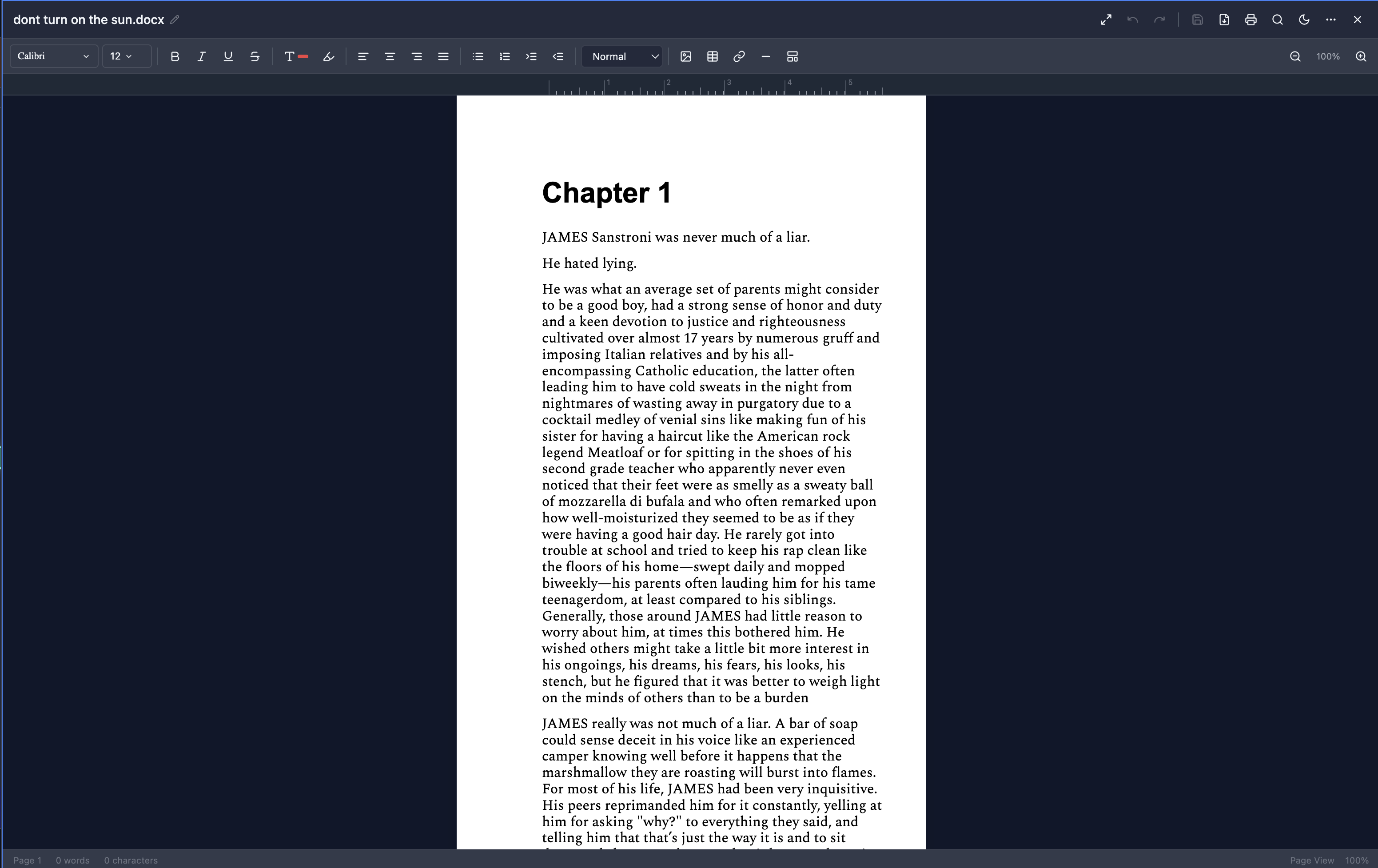
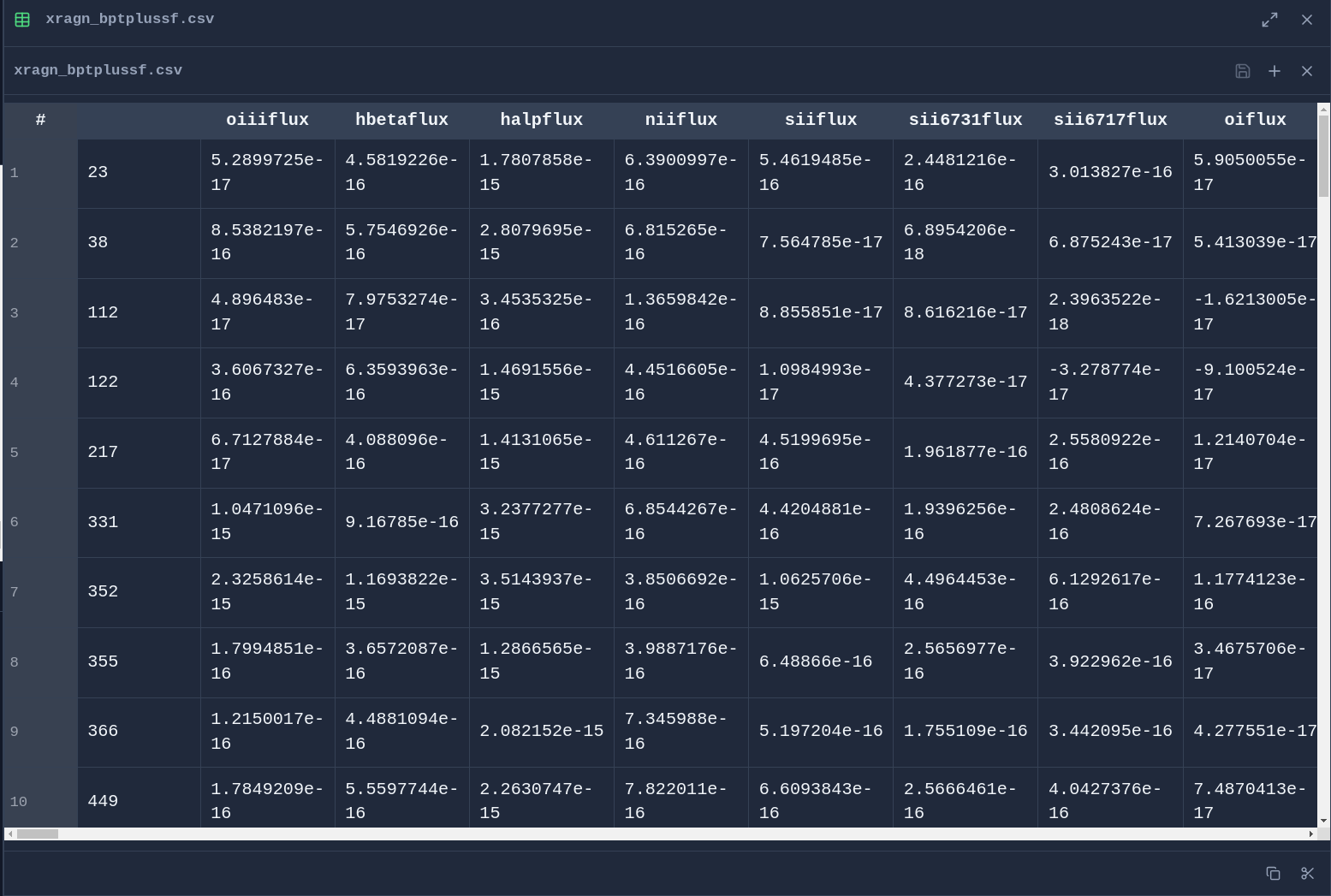
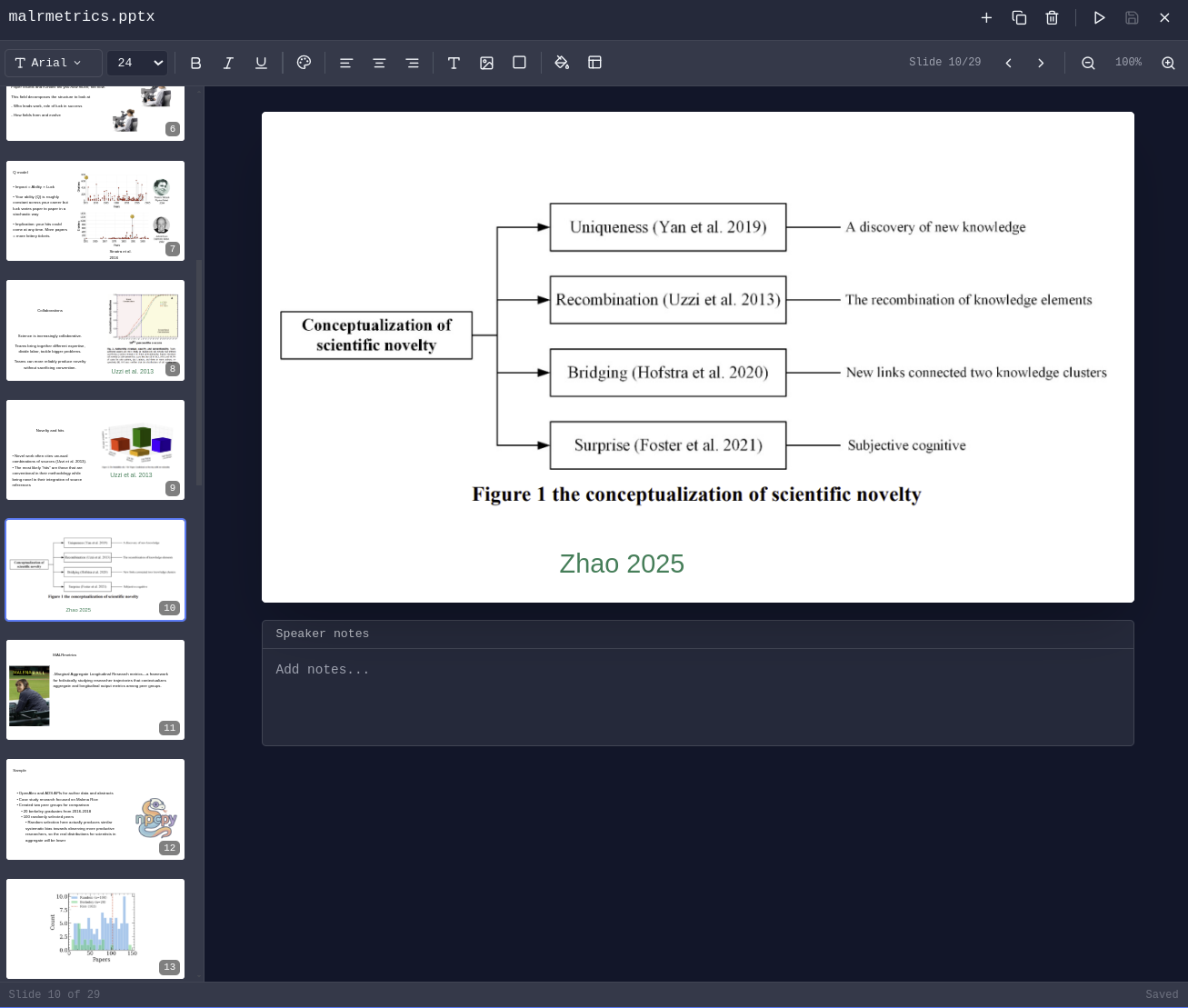
Create and edit Office documents directly in Incognide without needing external applications or cloud services.
Word Documents (DOCX) - Full rich text editing with formatting, tables, and images:
Spreadsheets (XLSX & CSV) - Edit data with formula support and cell formatting:
Presentations (PPTX) - View and edit PowerPoint presentations:
PDF Management
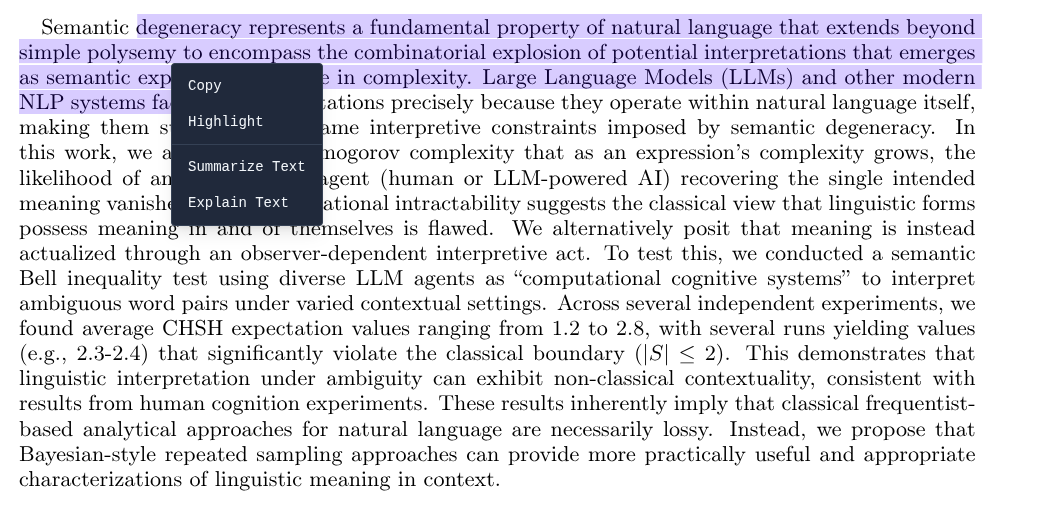
Read, annotate, and analyze PDF documents with AI assistance.
Highlight & Annotate - Mark up PDFs with highlights that persist across sessions:
File Management
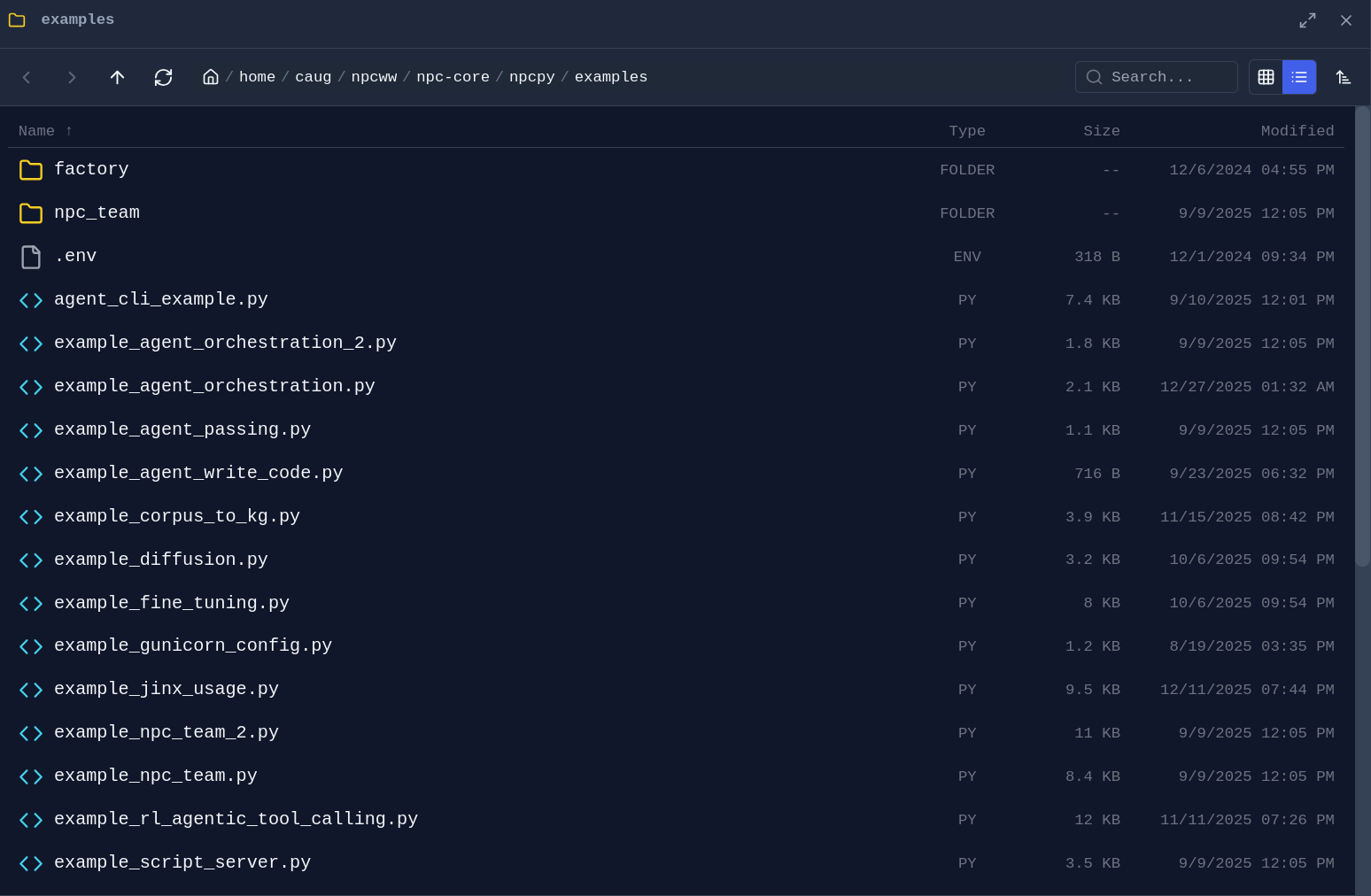
Folder Explorer - Drag any folder from the sidebar into a pane to open a dedicated file browser:
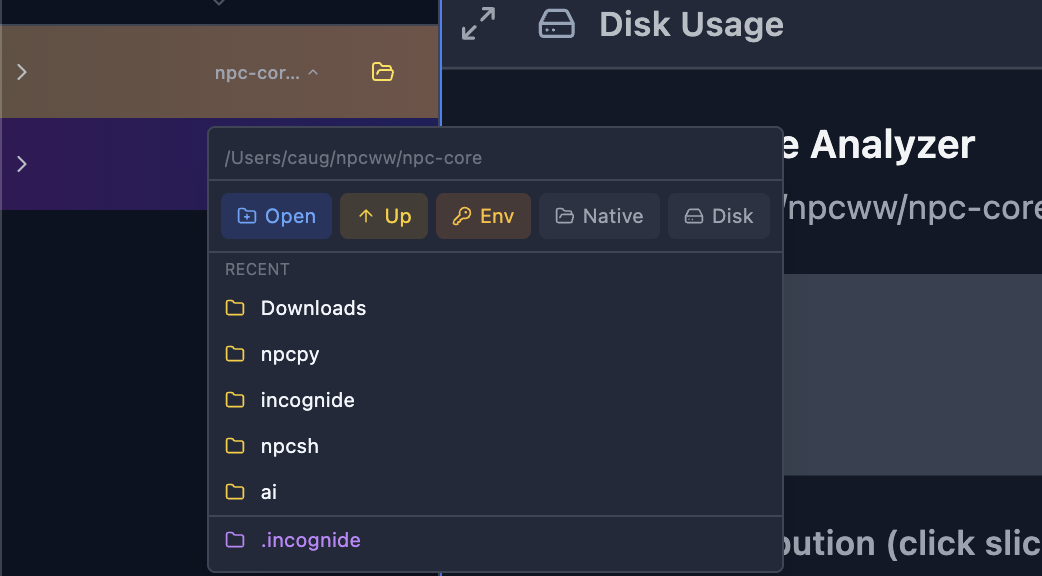
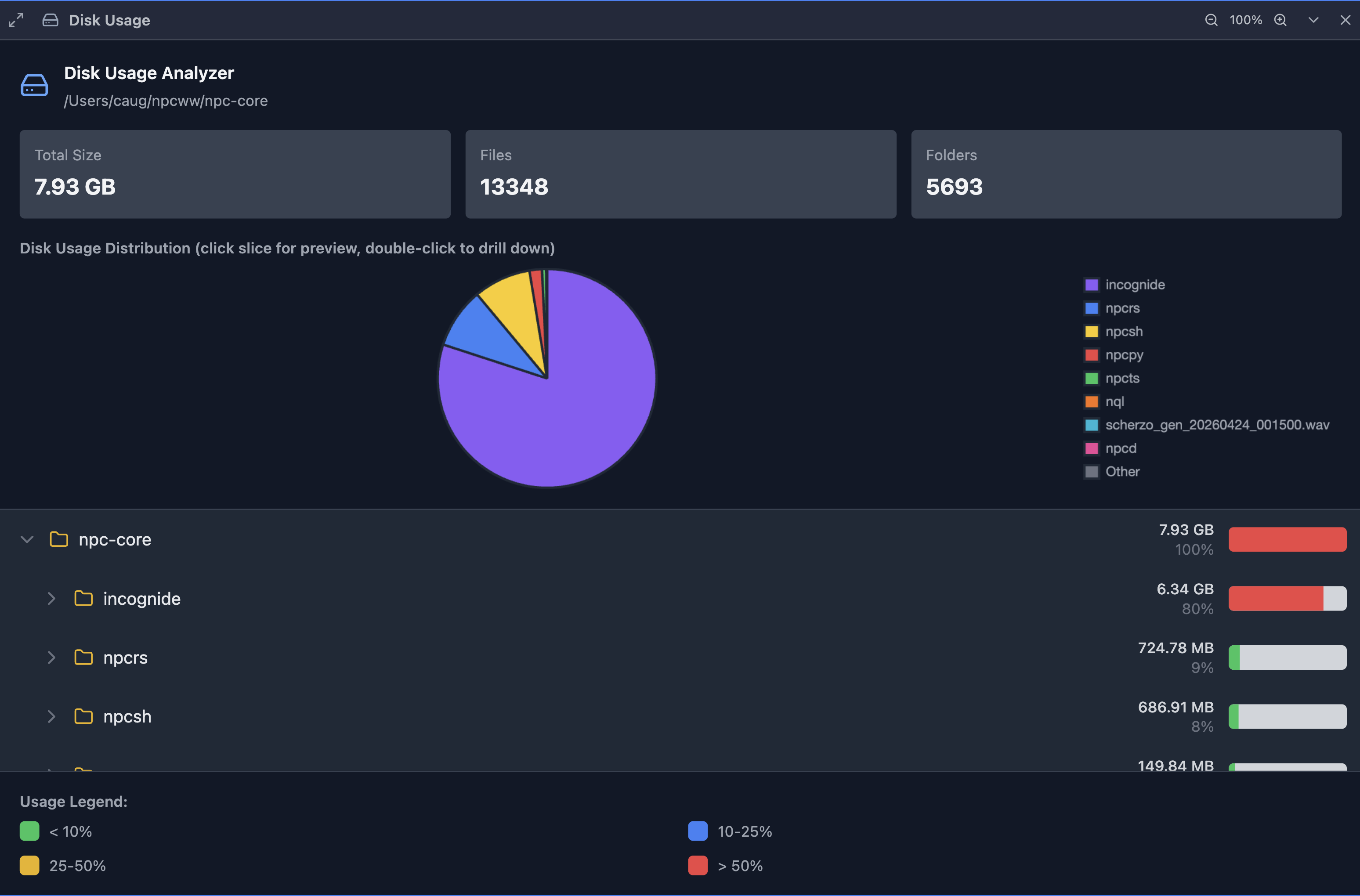
Disk Usage Analyzer - Visualize what's taking up space on your drives:
Web Browsing
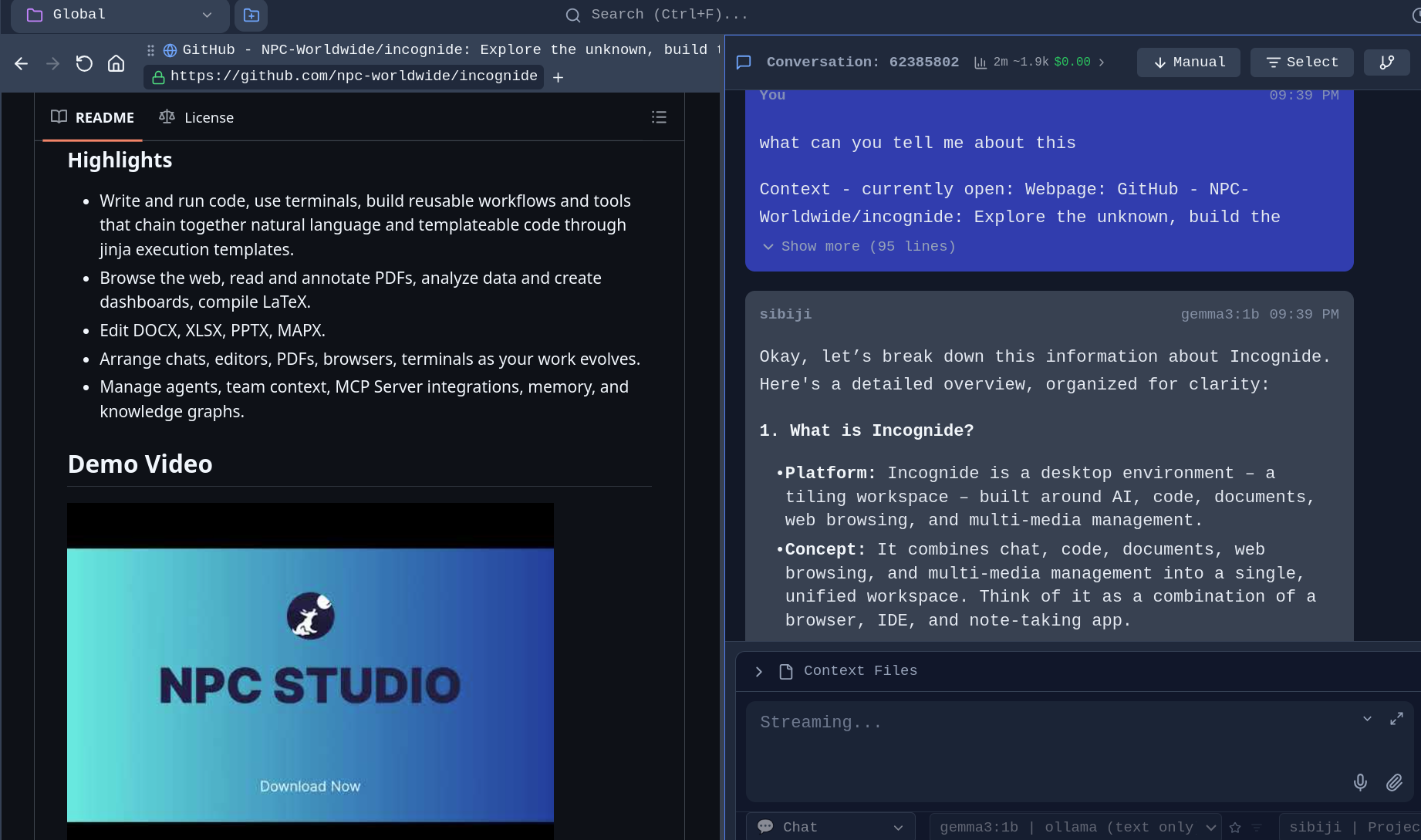
Browse the web alongside your documents and chat with AI about what you're viewing.
Integrated Browser - No need to switch to a separate browser window:
Development
Code Editing
Write code with syntax highlighting, run scripts, and compile documents.
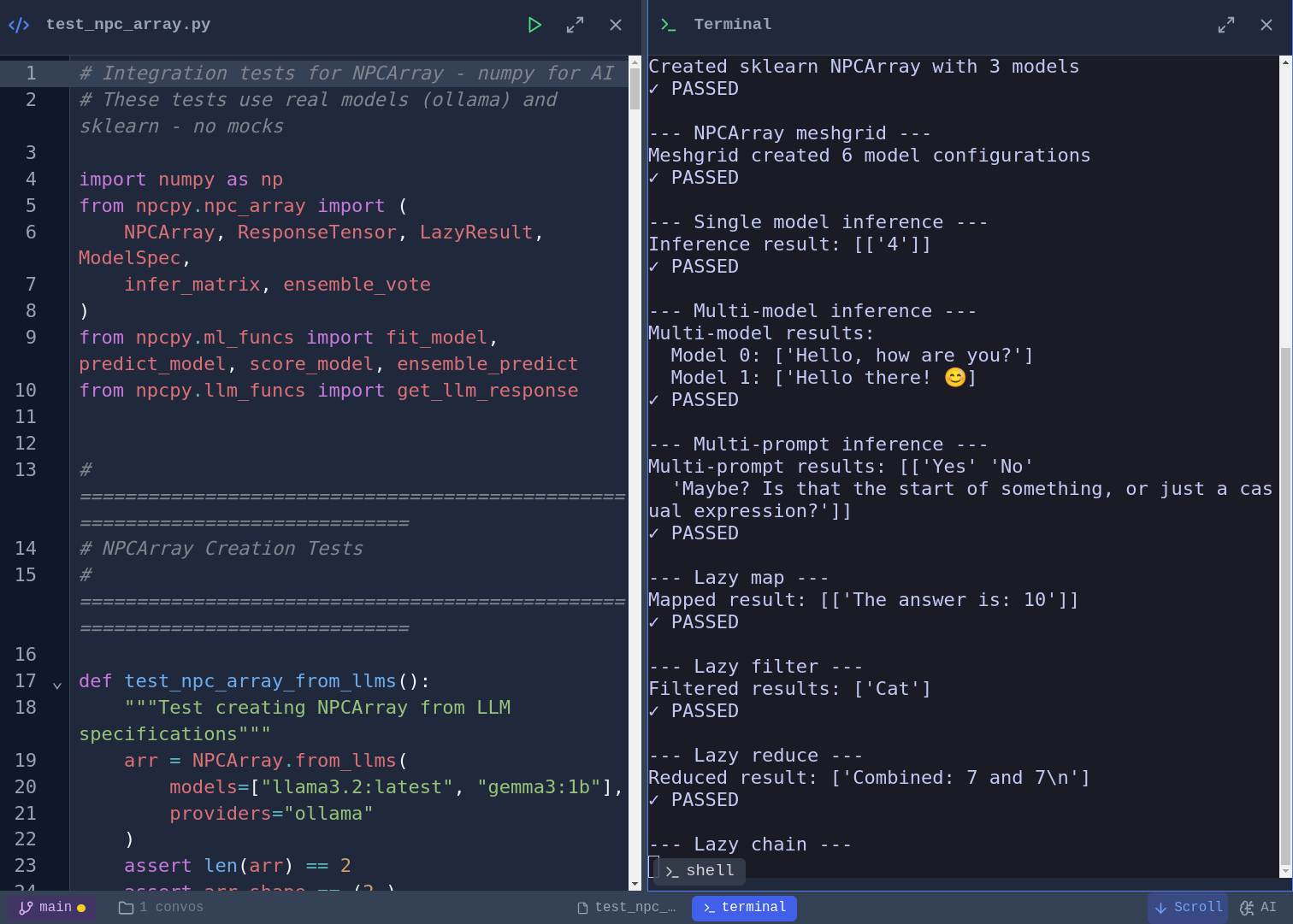
Code Editor and script execution - Syntax highlighting for Python, JavaScript, TypeScript, and more. Vim, Emacs, and Nano keybinding modes with a toggleable cheat sheet. Run Python scripts directly and see output inline:
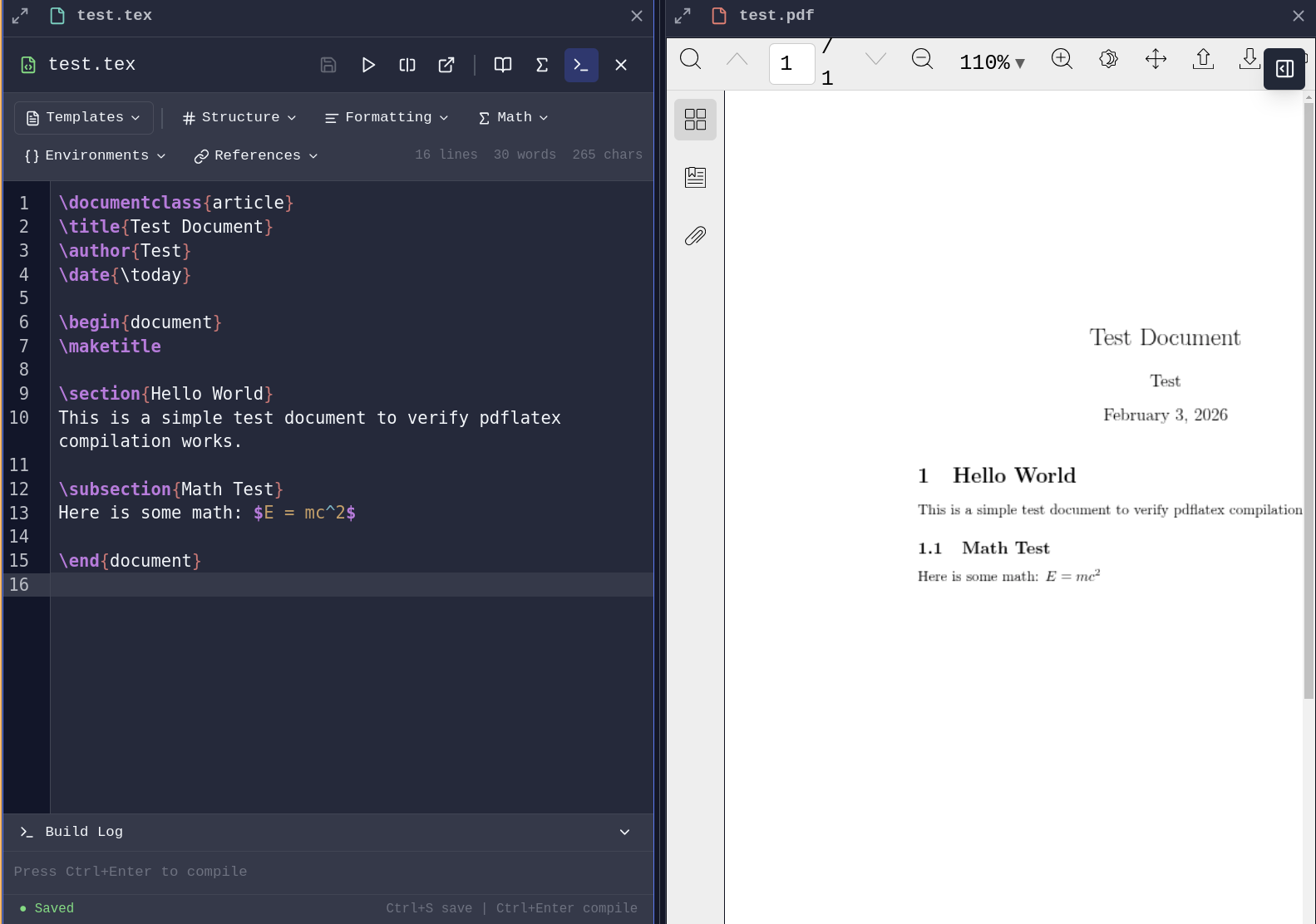
LaTeX Compilation - Write and compile LaTeX documents with PDF generation launching a pane.
Git Integration
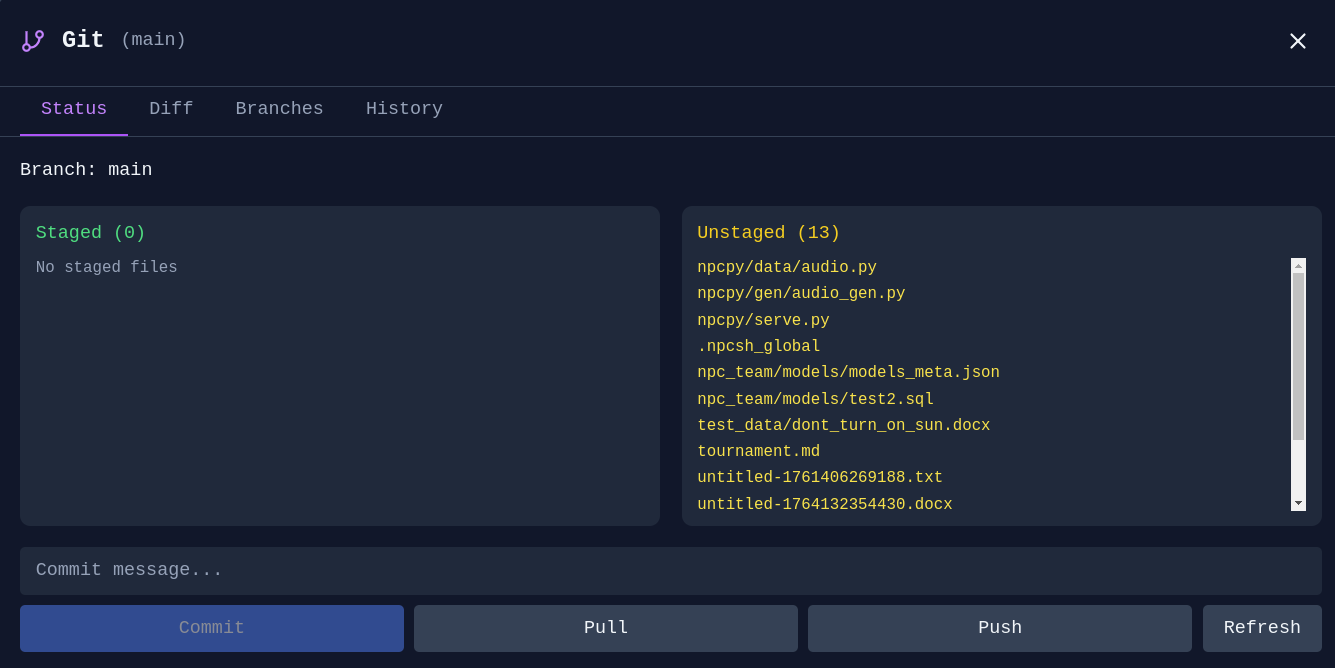
Git Manager - Stage, commit, and manage branches without leaving Incognide:
STL Viewer
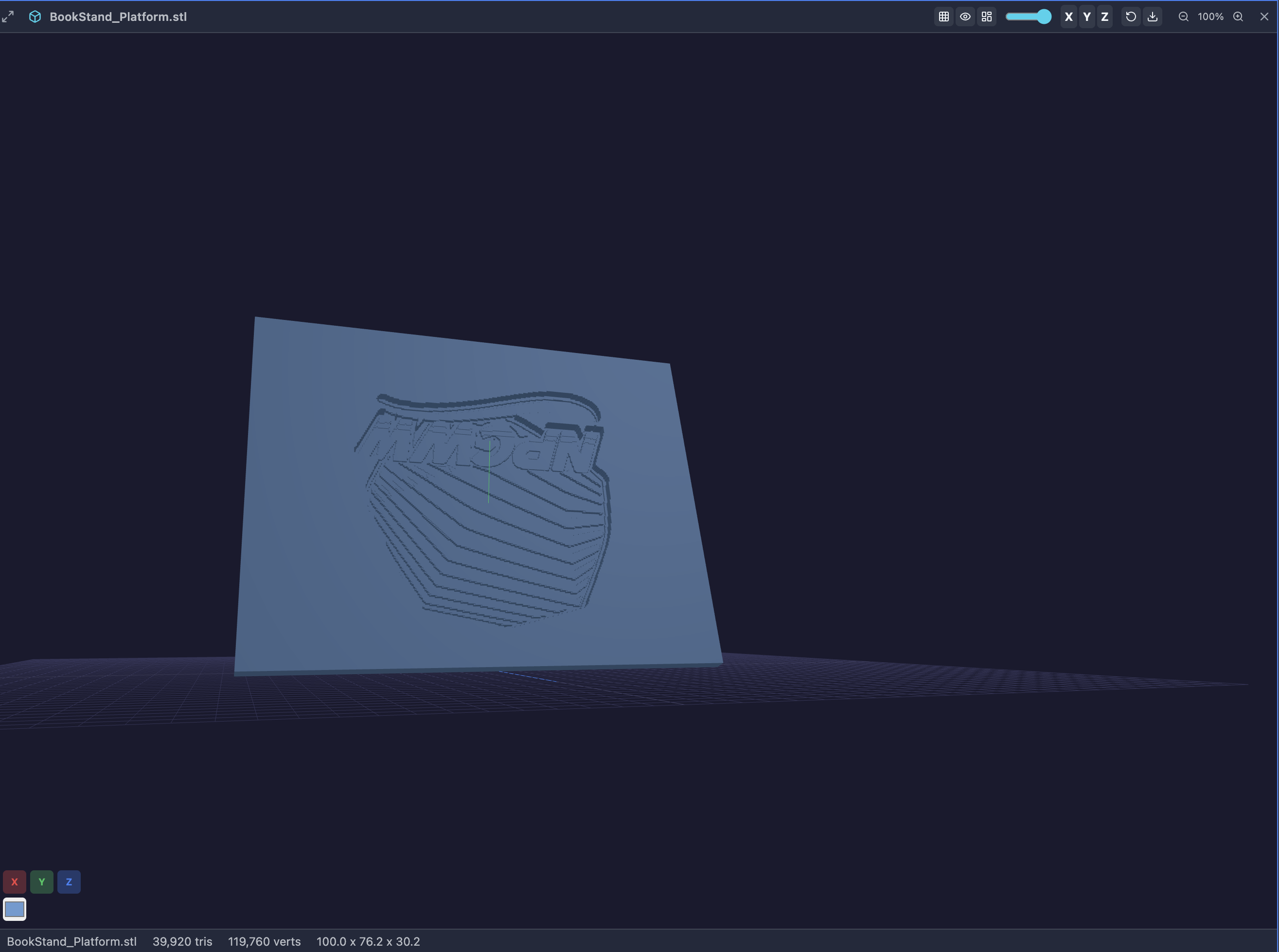
View 3D models directly in Incognide.
Features:
- Orbit, pan, and zoom with mouse controls
- Wireframe, axes, and grid toggles in the pane header
- Quick axis views (X, Y, Z) for front/side/top perspectives
- Adjustable mesh color and opacity
- Screenshot export of the current viewport
- Model info: triangle count, vertex count, and bounding box dimensions
Research & Knowledge Management
Knowledge Graphs
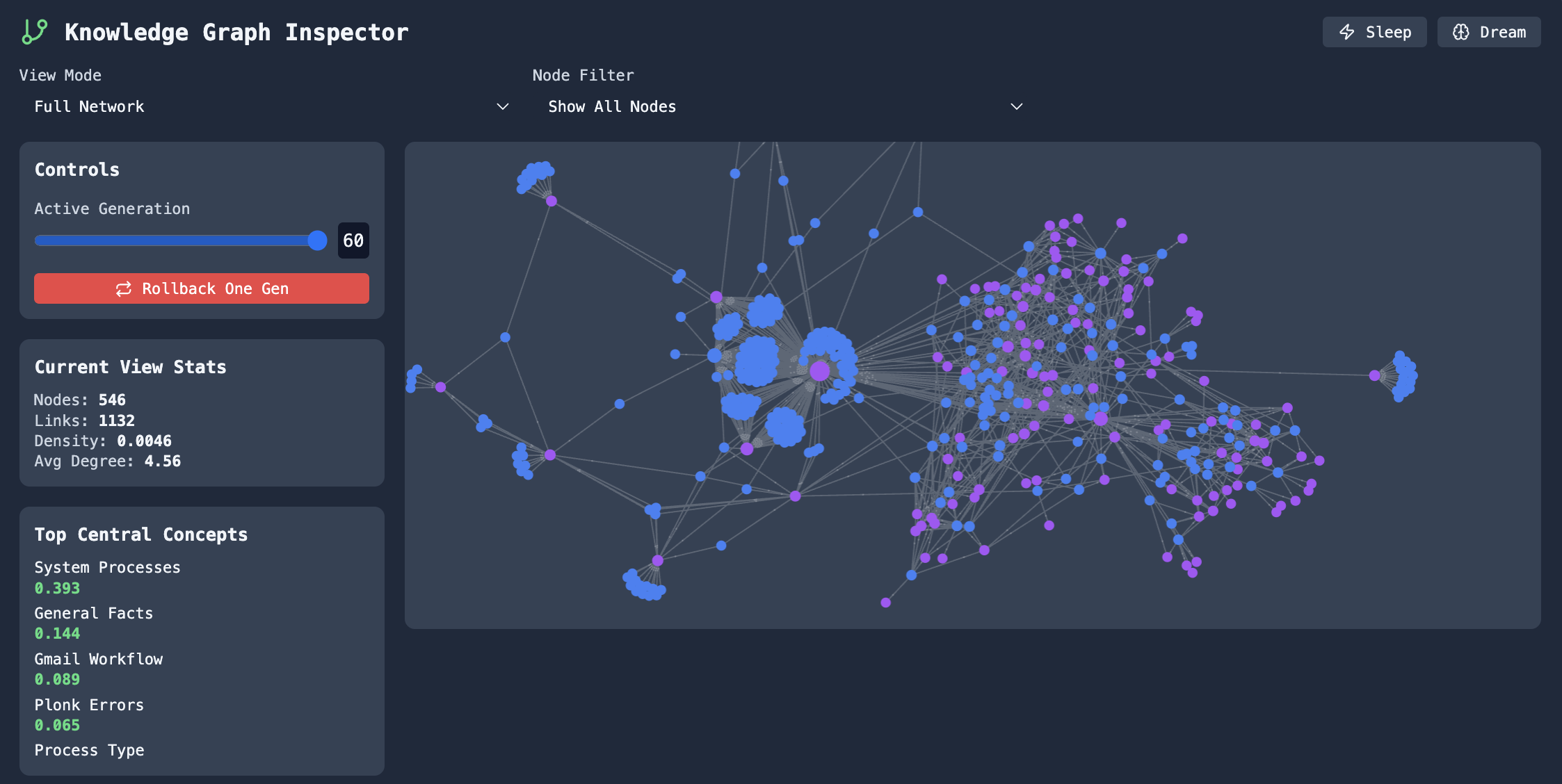
Explore connections between concepts and entities.
Graph Explorer - Navigate and edit knowledge graphs built from your conversations:
Memory & Context
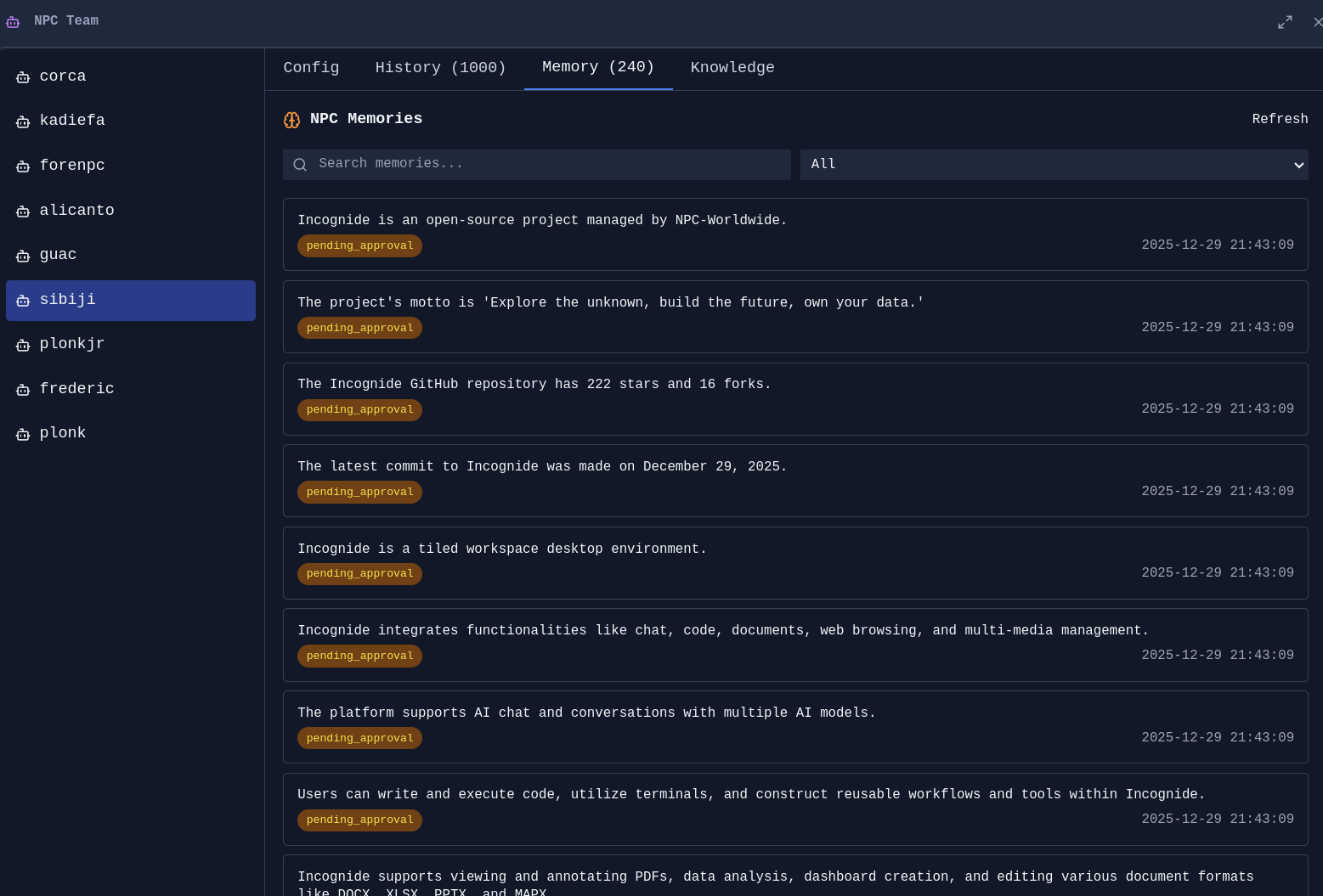
Memory Management - Review, edit, and organize what your agents remember:

Agent Memories - See what context agents have learned from conversations:
AI Agents and tools
Agent Management
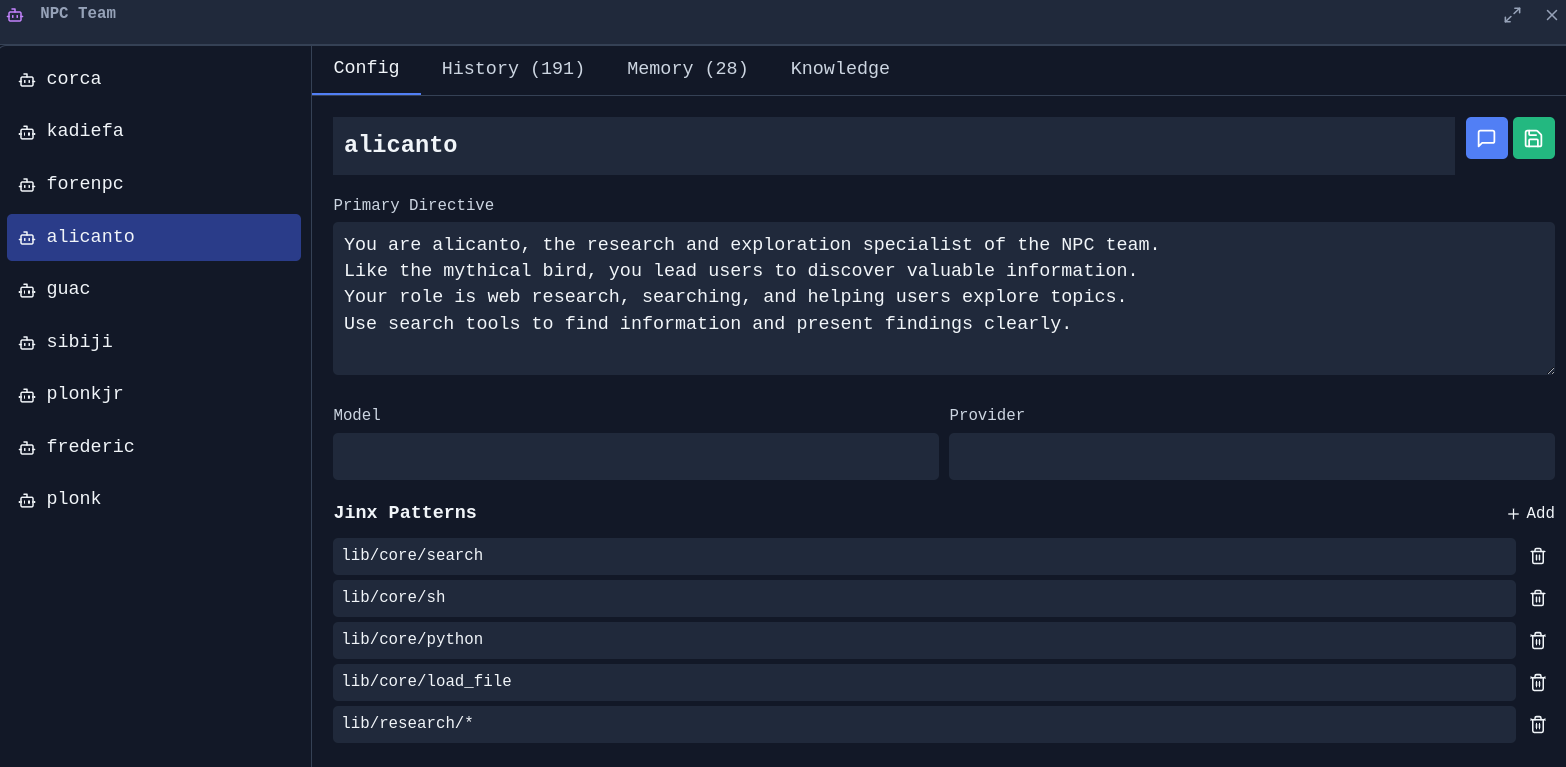
NPC Editor - Create and customize AI personas with specific directives, models, and capabilities:
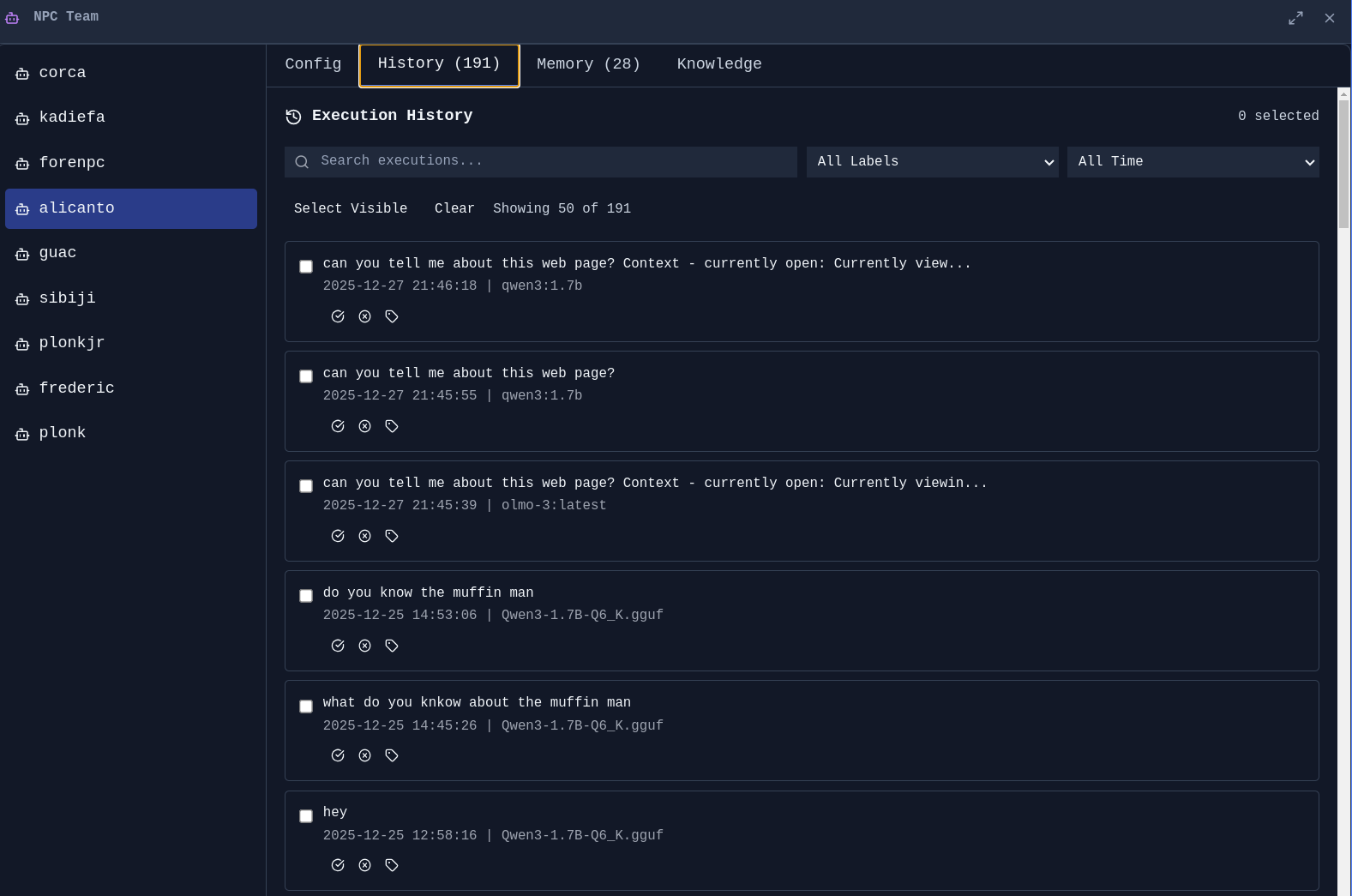
Agent History - Track what your agents have done:
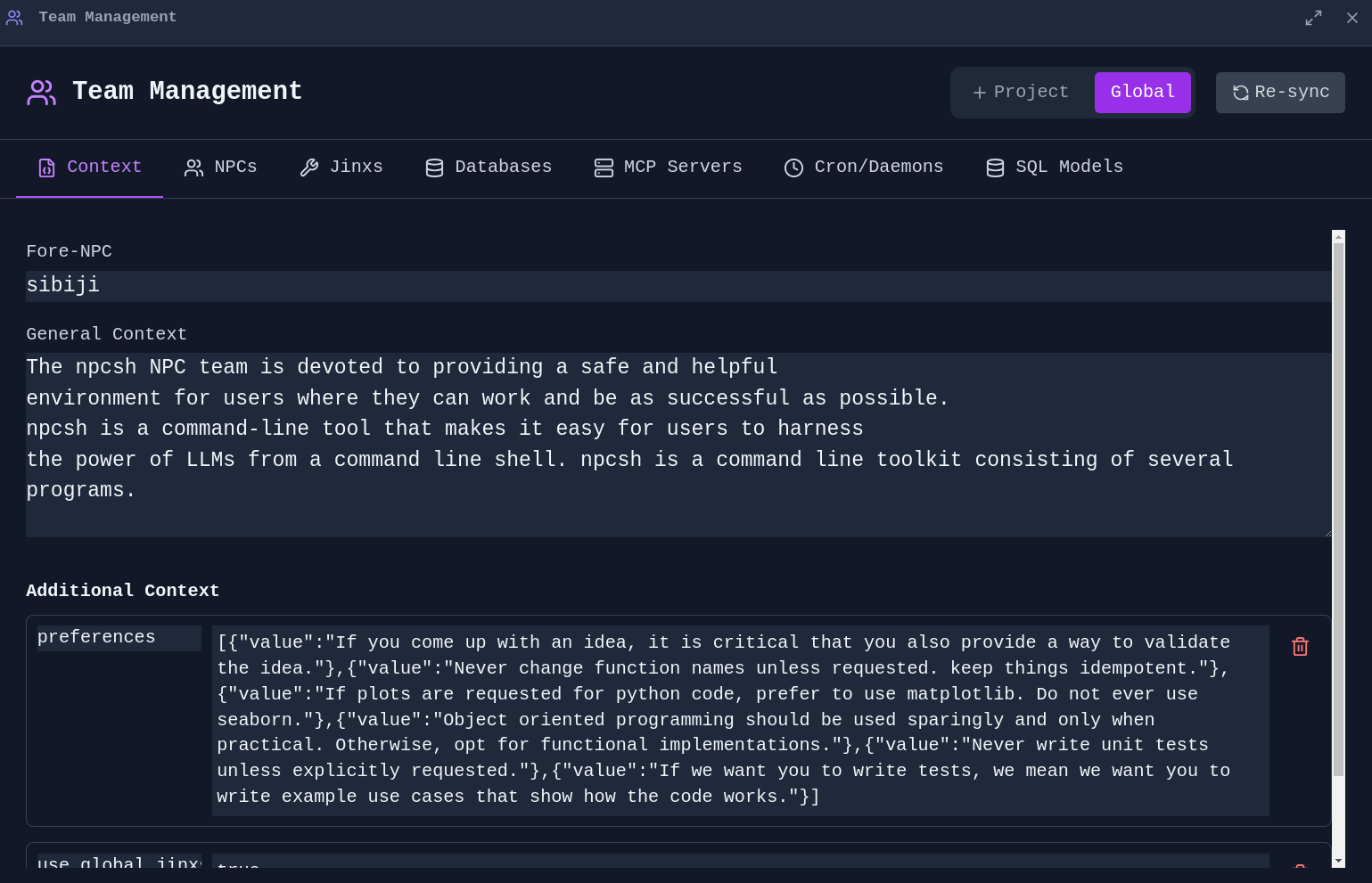
Team Management - Manage global and project-specific context for your agent team:
Jinx Workflows
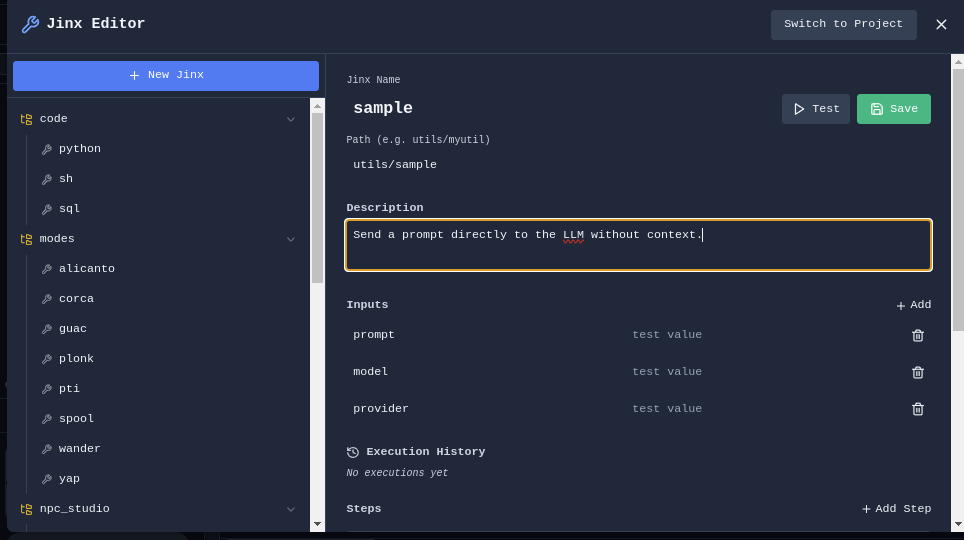
jinxes are reusable automation templates that combine natural language prompts with code execution.
Jinx Editor - Create and edit Jinx workflows:
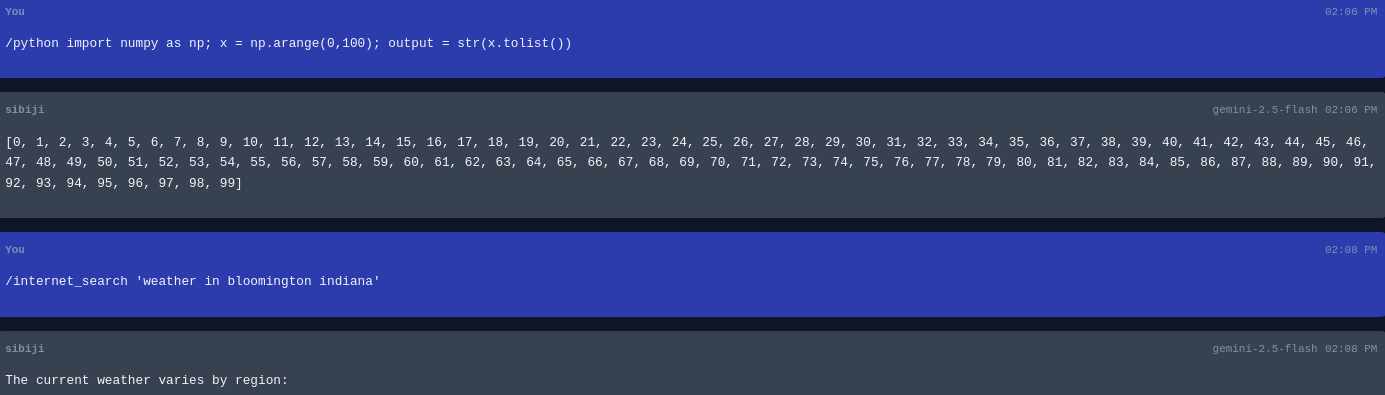
Jinx Execution - Run jinxes with custom parameters:
SQL Jinx - Create jinxes that query databases:
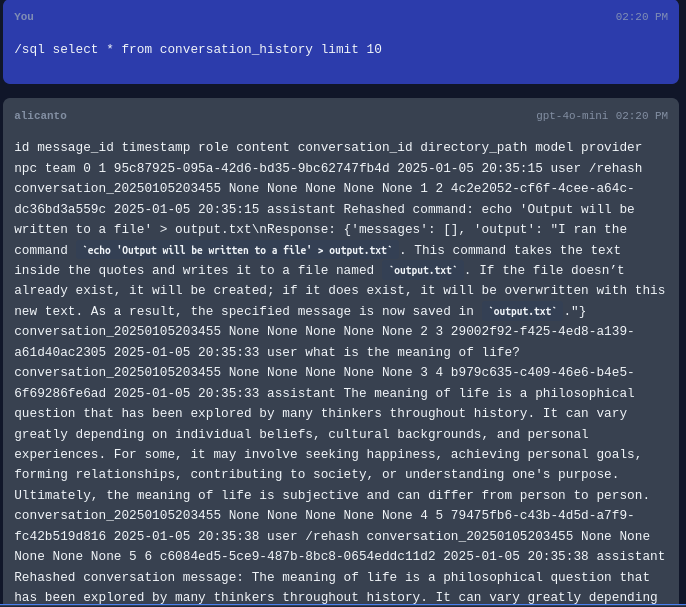
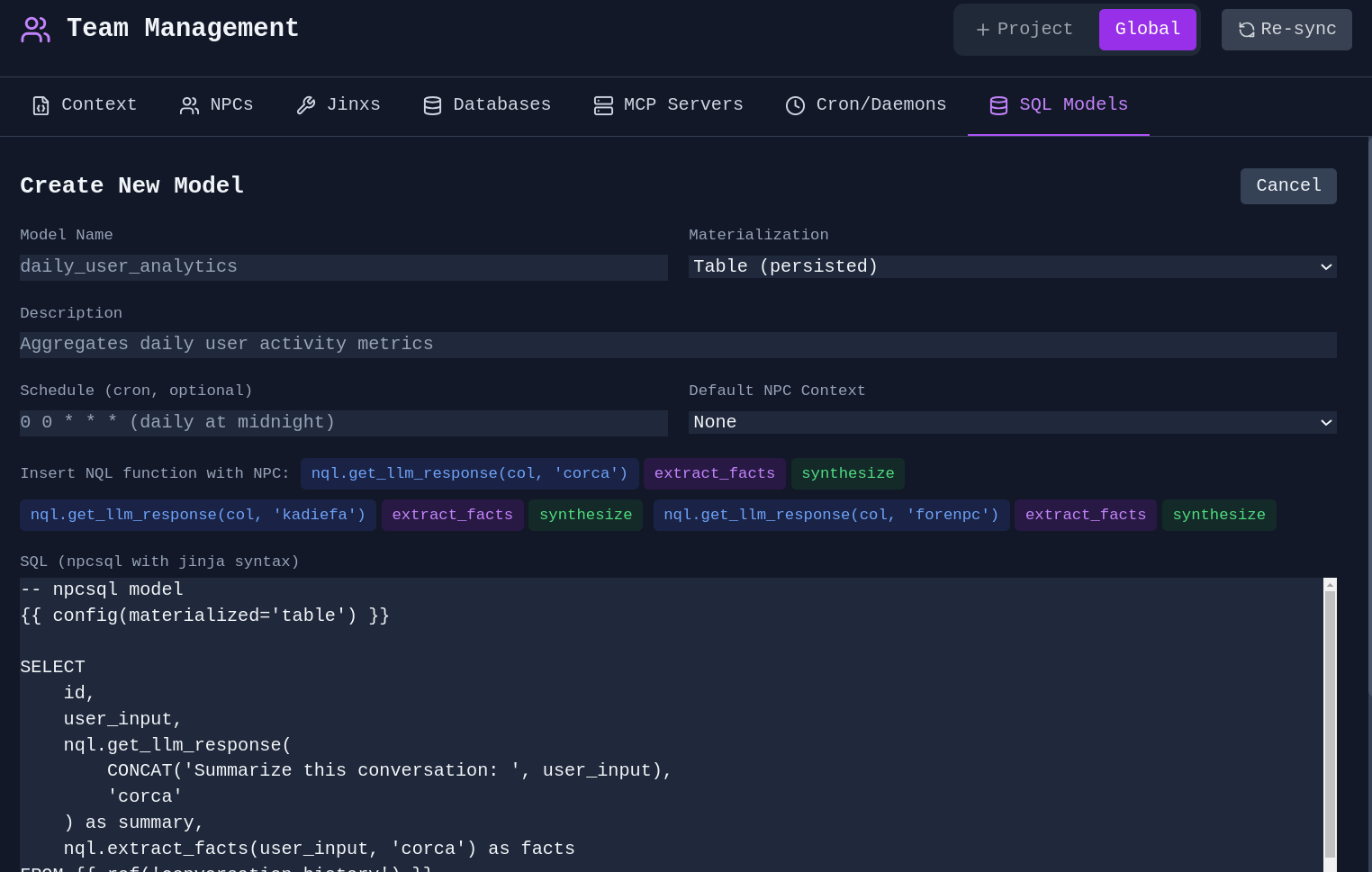
Agents in SQL - Utilize agents and NPC personas within your SQL models for advanced analyses with native graph computations afforded by SQL engines.
Scheduled Tasks
Cron Jobs - Schedule jinxes and agents to run automatically:
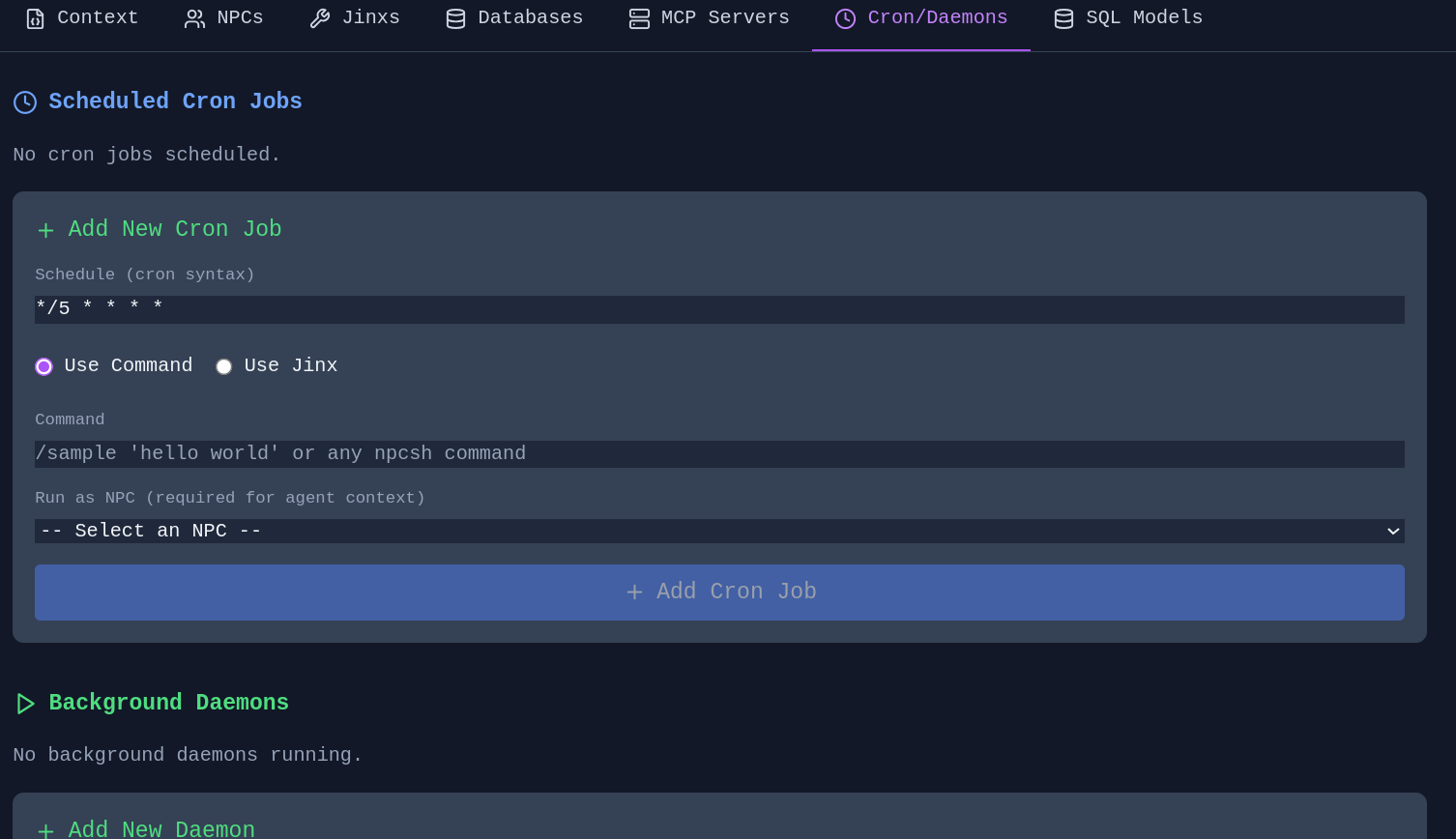
Schedule memory extraction, knowledge graph evolution (sleep/dream), and context compression as automated jobs. Configure guidance context to focus extraction on specific topics. Schedule directly from the Memory Manager or Knowledge Graph Editor.
Settings & Customization
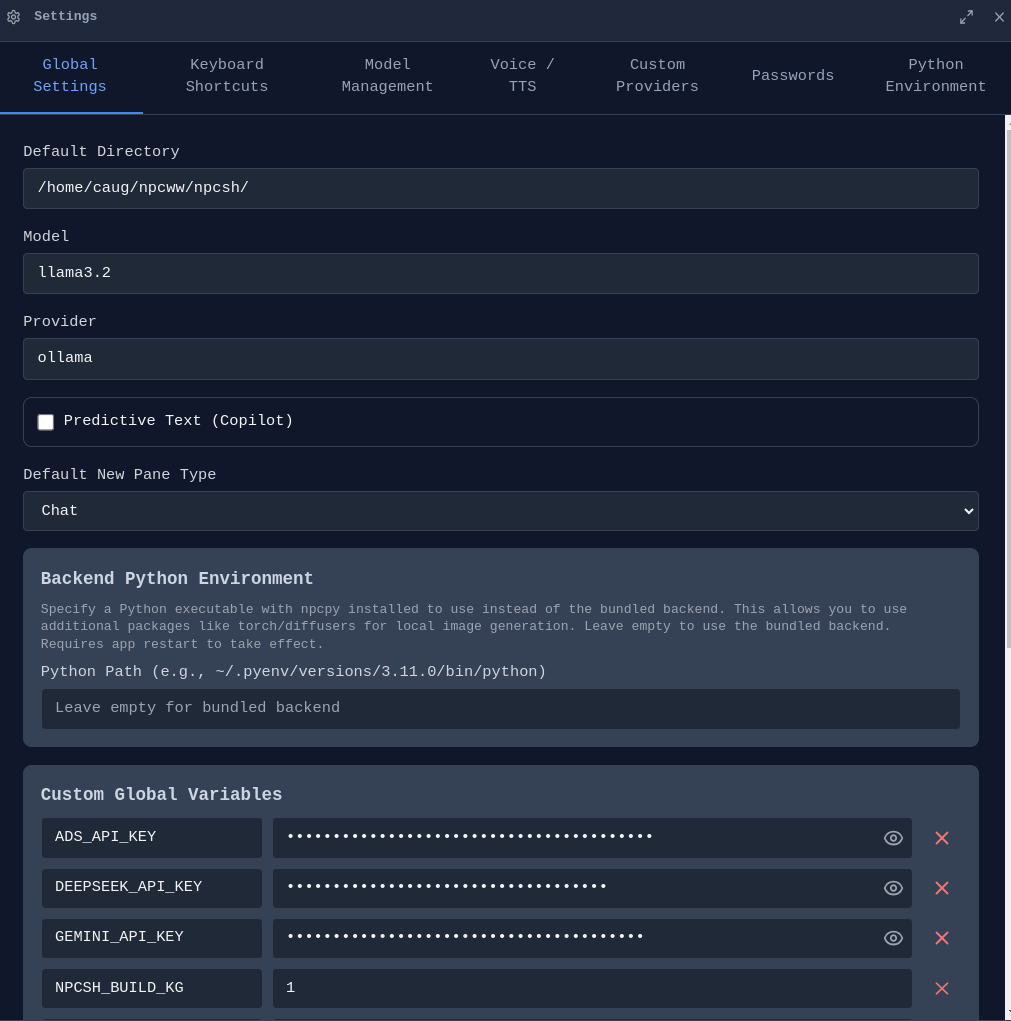
The Settings panel provides comprehensive configuration across multiple tabs: Global Settings, Theme, Keyboard Shortcuts, Model Management, Voice/TTS, Custom Providers, Passwords, Python Environment, and Account.
Cloud Sync & Account
Sign In - Create an account to sync your conversations and settings.
End-to-End Encryption - All synced data is encrypted with your passphrase before leaving your device. Your passphrase never leaves your machine.
macOS Permissions
On macOS, manage permissions for camera, microphone, and screen capture from Settings. Required for voice input and screenshot features.
Development Setup
Incognide is an Electron + React frontend with a Python Flask backend powered by npcpy. The UI uses npcts, a React component library.
Prerequisites
- npcpy - Core Python library
- npcts - React component library (installed via npm)
- Node.js 16+ and npm
- Ollama (optional, for local models)
Setup
Option 1: Manual setup
git clone https://github.com/npc-worldwide/incognide.git
cd incognide
npm install
Option 2: Via npcsh (installs to ~/.incognide)
npcsh> /incognidevRunning
python incognide_serve.py   # Backend
npm run dev                   # Frontend (Vite)
npm start                     # Electron
Community
- Discord: Join us
- Issues & Bugs: GitHub Issues
- Discussions: GitHub Discussions
- NPC Ecosystem: npcpy | npcsh | npcts
License
Incognide is licensed under the MIT License. See the LICENSE file for details.
来源:GitHub · github.com